

Booking
Under Settings > Booking you will find settings that control booking behaviour. The settings are spread across six tabs: General (↗ open), Cancellation (↗ open), Check-in (↗ open), Lead time (↗ open), Tickets (↗ open), and Privacy (↗ open).
General booking settings
Section titled “General booking settings”The General tab contains the following groups:
General settings
Section titled “General settings”| Setting | Description |
|---|---|
| Prevent customer email on booking | No customer emails at all are sent in the booking context (confirmation, edits, cancellation, reminders, etc.). |
| Send invoice to customer by email (from booking widget) | Bookings created via a widget automatically trigger the invoice email to the customer. |
| Disable payment link in booking confirmation email | Removes the “Pay now” link from the booking confirmation email. |
| Use booking sidebar setting “Booking shown in widgets” | Override mode: instead of the global default, the value set per booking in the booking sidebar is used for widget visibility. |
| Enable “Show booking in widgets” by default | New bookings are visible in the booking widgets by default. If disabled, visibility must be set per booking manually. |
| Enable “Show in foyer widget” by default | New bookings appear in the foyer/entrance hall display by default. |
| Visibility settings for custom fields are combined with “AND” | Multiple visibility conditions of a custom field must all be met (AND instead of OR). |
Price settings
Section titled “Price settings”| Setting | Description |
|---|---|
| Prices disabled | Prices are completely hidden internally and externally (e.g. if you operate free of charge). |
| Price disabled for customers | Prices are only visible internally; customers see no prices in widgets or on the platform. |
| Send price information in booking information emails | Booking info emails include the booking price. Otherwise, prices are only communicated via the invoice. |
Widget settings
Section titled “Widget settings”| Setting | Description |
|---|---|
| Disable invoice creation from widget | Customers cannot trigger an invoice in the widget checkout; billing runs internally. |
| Allow booking request on conflict for customers in widget | Disabled by default. When enabled, customers may submit a booking request despite conflicts (e.g. blocked time or overlap). It lands as a conflict request with the manager. |
| Allow customers to skip conflicts when booking in widget | For multi or series bookings, the customer can deselect the conflicting dates and submit the conflict-free ones anyway. This deselection is only possible with this option enabled. |
| Disable “Communication” tab in widgets | Hides the “Communication” tab in the widget’s booking sidebar. |
| Enable comment option for customers in checkout | Activates a free-text comment field in the booking widget checkout. |
| Label of the checkout comment field | Custom label for the activated comment field (e.g. “Notes for the booking”, “Information for the administration”). |
When conflict requests are enabled, the manager can resolve conflicts: “Save and remove conflict” or “Delete booking instance”.
Required fields
Section titled “Required fields”| Setting | Description |
|---|---|
| Title required for managers/users | Internal bookings (in the calendar, created by staff) must have a title. |
| Title required for customers | Bookings made via widgets or the booking platform must have a title. |
Editing by customers
Section titled “Editing by customers”| Setting | Description |
|---|---|
| Allow editing of “free” bookings | Customers may change bookings without a price afterwards via the platform. |
| Allow editing of “unbilled” bookings | Customers may change bookings as long as no invoice has been created yet. |
| Allow subsequent editing of custom fields | Customers may adjust the values of custom fields even after the booking has ended (e.g. to fill in attendance numbers afterwards). |
Cancellation terms
Section titled “Cancellation terms”Define whether and under what conditions customers may cancel bookings. Cancellation terms can differ per resource and customer group.
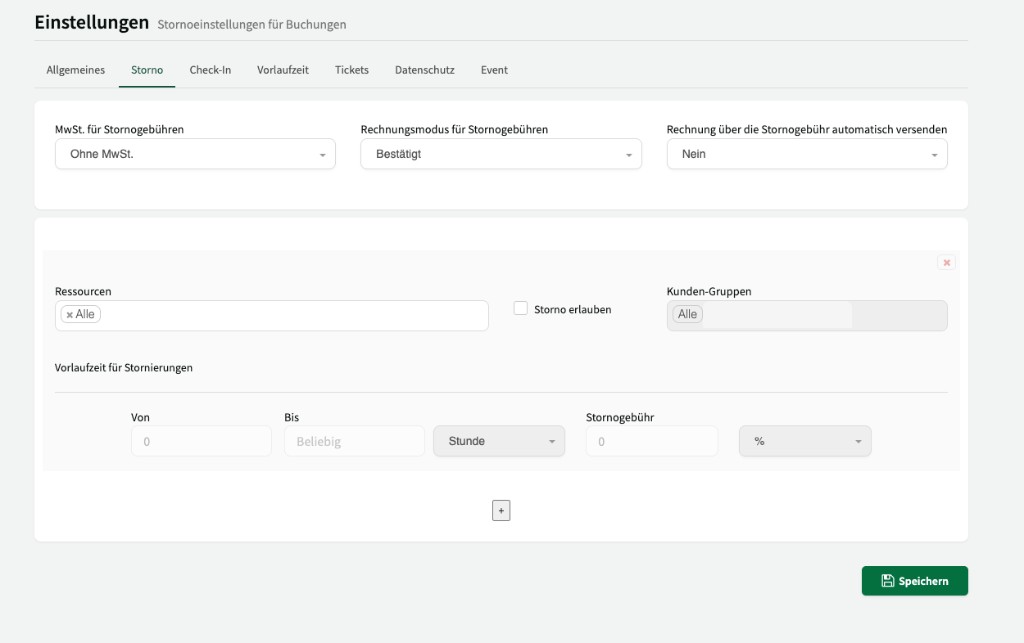
General cancellation settings
Section titled “General cancellation settings”At the top of the Cancellation tab you control how Locaboo creates and handles cancellation invoices:
| Setting | Description |
|---|---|
| VAT for cancellation fees | Determines whether cancellation fees are shown with or without VAT. Options: Without VAT or With VAT. |
| Invoice mode for cancellation fees | Status in which cancellation invoices are created. Confirmed (approved) creates the cancellation invoice directly as a final, approved invoice; Draft/Option creates it as a draft that still needs to be reviewed and approved. |
| Send invoice for the cancellation fee automatically | Yes sends the cancellation invoice by email to the customer immediately after it is created. No keeps the invoice internally; the dispatch then happens manually. |
Cancellation rules per resource and customer group
Section titled “Cancellation rules per resource and customer group”Below that you define the actual cancellation rules. Each rule can be limited to certain resources and customer groups and contains the following fields:
| Setting | Description |
|---|---|
| Allow cancellation | Allow or disallow cancellation in principle. |
| Lead time for cancellations | Time-based cancellation fees as tiers (from/to in hours, days, etc.). |
| Cancellation fee | Fixed amount or percentage of the booking price per tier. |
Use the + below a rule to add more tiers. Use the + below the card to add a new rule for other resource/customer-group combinations.
Customers see the applicable cancellation fee before confirming. Cancellation invoices are created automatically according to the settings above.
Configuring cancellation fees
Section titled “Configuring cancellation fees”Cancellation fees are defined as tiered rules. The closer the cancellation is to the start of the event, the higher the fee can be.
Example of a typical tier:
| Cancel by | Fee |
|---|---|
| More than 14 days before start | Free (0 %) |
| 3–14 days before start | 50 % of the booking price |
| Less than 3 days before start | 100 % of the booking price |
Differentiation by resource and customer group
Section titled “Differentiation by resource and customer group”You can create different cancellation rules for different combinations:
- Clubs cancel free of charge up to 48 hours in advance
- Private/commercial pay 50 % cancellation fee from 7 days before
- Schools can cancel free of charge at any time
Customer cancellation on the platform
Section titled “Customer cancellation on the platform”If customer cancellation is enabled, customers can cancel their own bookings via their customer account on the booking platform. Cancellation deadlines and fees apply automatically. The customer sees the applicable fee before confirming.
Cancelling series bookings
Section titled “Cancelling series bookings”For series bookings (e.g. within a season), individual dates can be cancelled without ending the entire series. Open the booking in the calendar, select the date, and change its status to Cancelled. The remaining dates stay unchanged.
Check-in
Section titled “Check-in”On the Check-in tab you enable check-in for resources. Customers can check in when entering a resource via QR code, short URL, or NFC tag. Actual usage is evaluated in Statistics.
Tickets
Section titled “Tickets”Under Tickets you enable ticketing so customers receive a ticket with QR code as a PDF by email with the booking confirmation. Customers can also download the ticket under My bookings in their customer account.