

Platform & widgets
Under Widgets you create and manage the various booking views your customers see on the booking platform or your website. Open the area via Platform / widgets (↗ open) in the left navigation.
Booking platform
Section titled “Booking platform”The booking platform is the central external entry point for your customers (clubs, schools, guests). It consists of:
- Resource overview – all available resources with image, description, and categories
- Widgets – additional booking and view options in the upper area
Configure the platform under Settings > Platform and widgets:
| Setting | Description |
|---|---|
| Link to platform | The public URL of your booking platform. |
| Title & description | Shown on the platform home page. |
| Logo & city image | Visual branding. |
| Resource selection | Which resources are visible on the platform. |
| Legal notices | Privacy policy, terms, cancellation policy (as link or text). |
| Multilingual | Configure language selection for customers. |
Widget types
Section titled “Widget types”Booking widgets
Section titled “Booking widgets”| Widget | Description |
|---|---|
| Calendar booking | Shows a calendar (day, week, month) where customers see free slots and book directly. Especially useful when you want to show several similar resources at a glance. |
| Request form | A simple form for booking requests – no calendar view. Requests land on the dashboard and under Bookings. There is no conflict check – especially suited to special requests even during closures. |
Display widgets (digital signage)
Section titled “Display widgets (digital signage)”| Widget | Description |
|---|---|
| Calendar view | Like calendar booking but without booking – view only. Suited to info screens. |
| Resource display | Shows current bookings for a single resource on site on a display. Navigate between days by touch. Also shows sub-resource bookings. |
| Foyer / entrance display | Shows all upcoming occupancy with wayfinding on a large display – ideal for entrance areas. |
Widget settings
Section titled “Widget settings”Each widget is configured in three tabs: General, Display, and Access.
General
Section titled “General”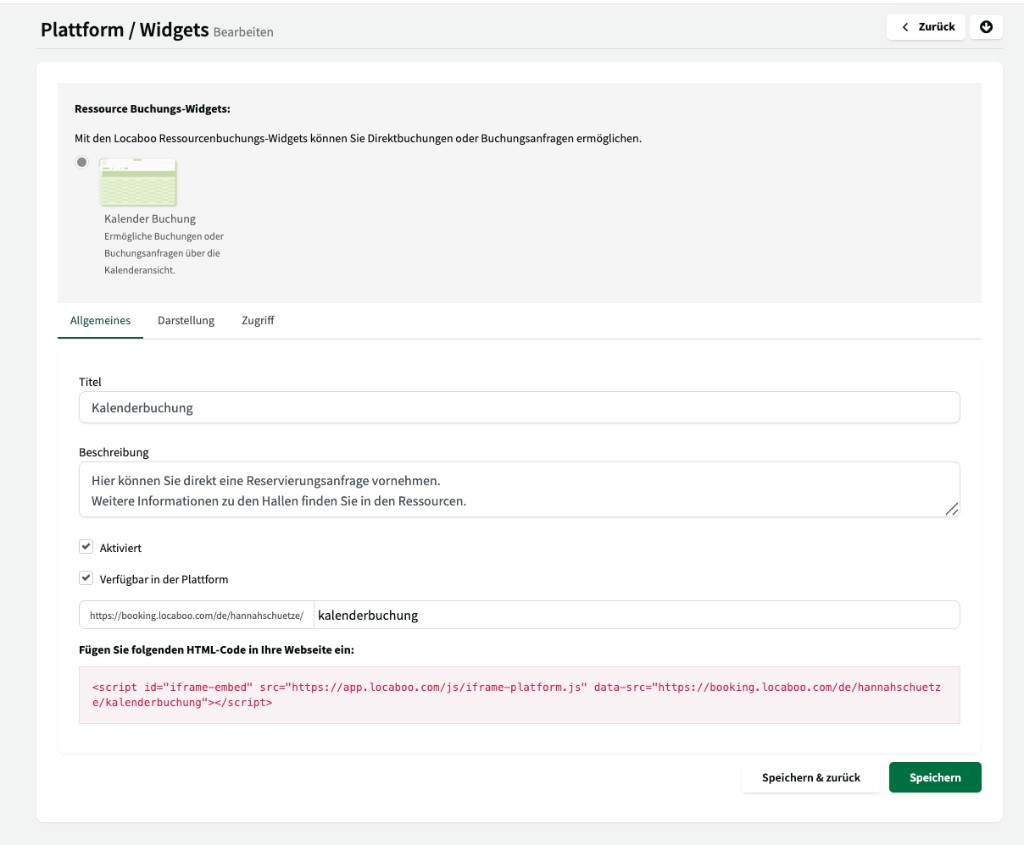
| Setting | Description |
|---|---|
| Title | Shown on the platform and in the browser tab. |
| Description | Free-text description shown on the platform overview under the widget. |
| Enabled | Widget is reachable via URL. If disabled, it is offline and not accessible to customers. |
| Available on platform | Whether the widget appears on the platform overview. If disabled, it is only reachable via direct URL – useful for widgets embedded only via iframe. |
| Custom URL | Own URL segment for the widget (e.g. kalenderbuchung). Special characters are removed automatically. The full URL is your platform URL plus the segment. |
| HTML embed code | The iframe embed code is generated automatically. Copy this code into your website to embed the widget via iframe. |
Display
Section titled “Display”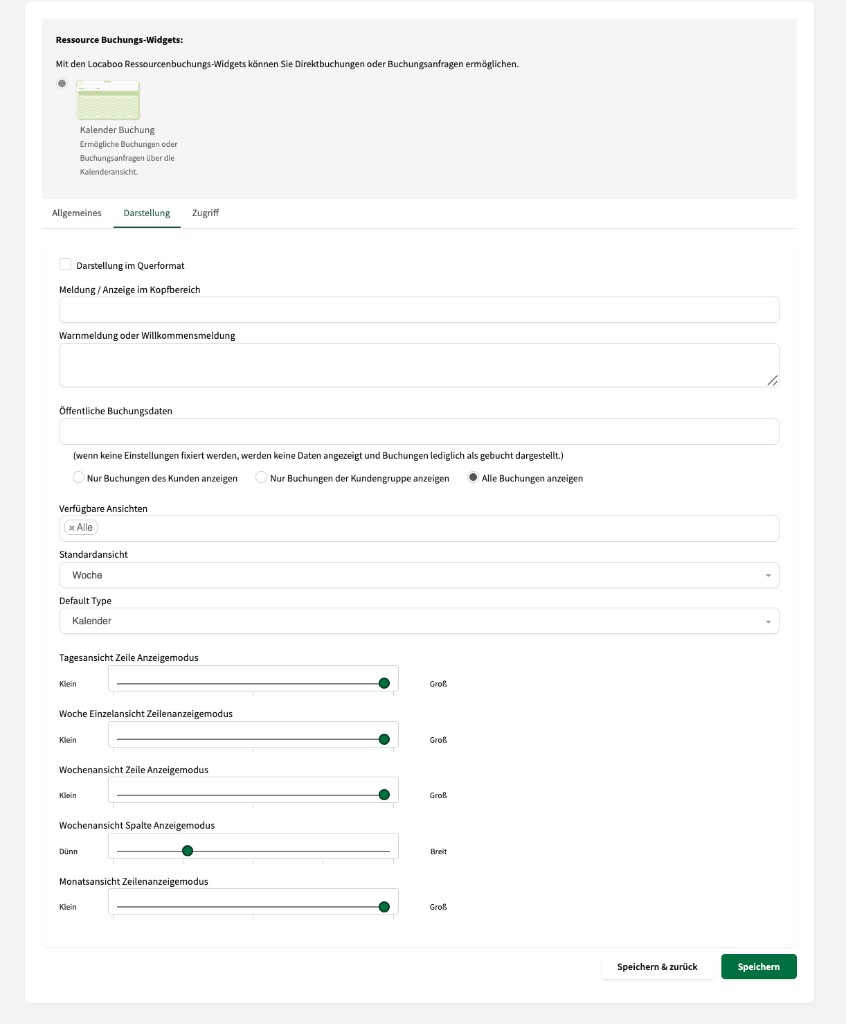
| Setting | Description |
|---|---|
| Landscape display | Enables landscape layout – suited to wide screens or displays. |
| Message / header display | Optional notice text in the upper area of the widget (e.g. maintenance or welcome messages). |
| Warning or welcome message | Larger text area for longer messages to customers in the widget. |
| Public booking data | Defines which booking information is visible to other customers in the calendar. If nothing is fixed, no data is shown and bookings appear only as “booked”. |
| Visibility of booking data | Show only customer’s bookings / Show only same customer group / Show all bookings – whose booking details are visible in the calendar. |
| Available views | Which calendar views customers can use (e.g. day, week, month). Default: all. |
| Default view | The preset view when opening the widget (day, week, or month). |
| Default type | The default display type (e.g. calendar). |
| Day view row display mode | Controls row height in day view (small to large). |
| Week single view row display mode | Controls row height in week single view (small to large). |
| Week view row display mode | Controls row height in week view (small to large). |
| Week view column display mode | Controls column width in week view (thin to wide). |
| Month view row display mode | Controls row height in month view (small to large). |
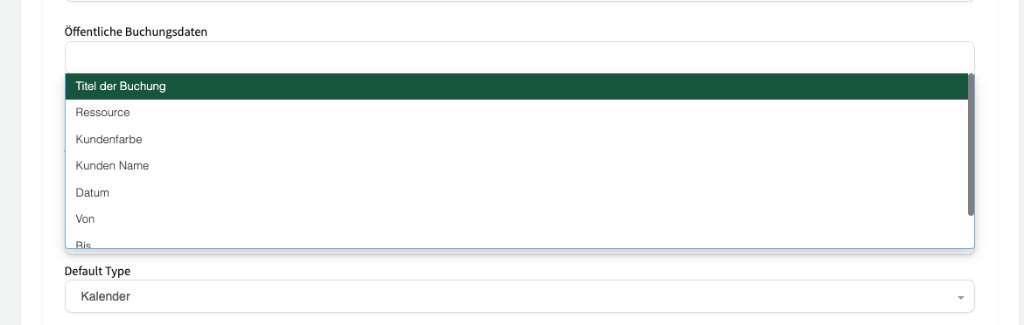
The following booking data can be shown publicly:
| Data point | Description |
|---|---|
| Booking title | The booking title is shown in the calendar. |
| Resource | The booked resource is shown. |
| Customer colour | The customer’s assigned colour is used in the calendar. |
| Customer name | The booking customer’s name is shown. |
| Date | The booking date is shown. |
| From | The booking start time is shown. |
| To | The booking end time is shown. |
Access
Section titled “Access”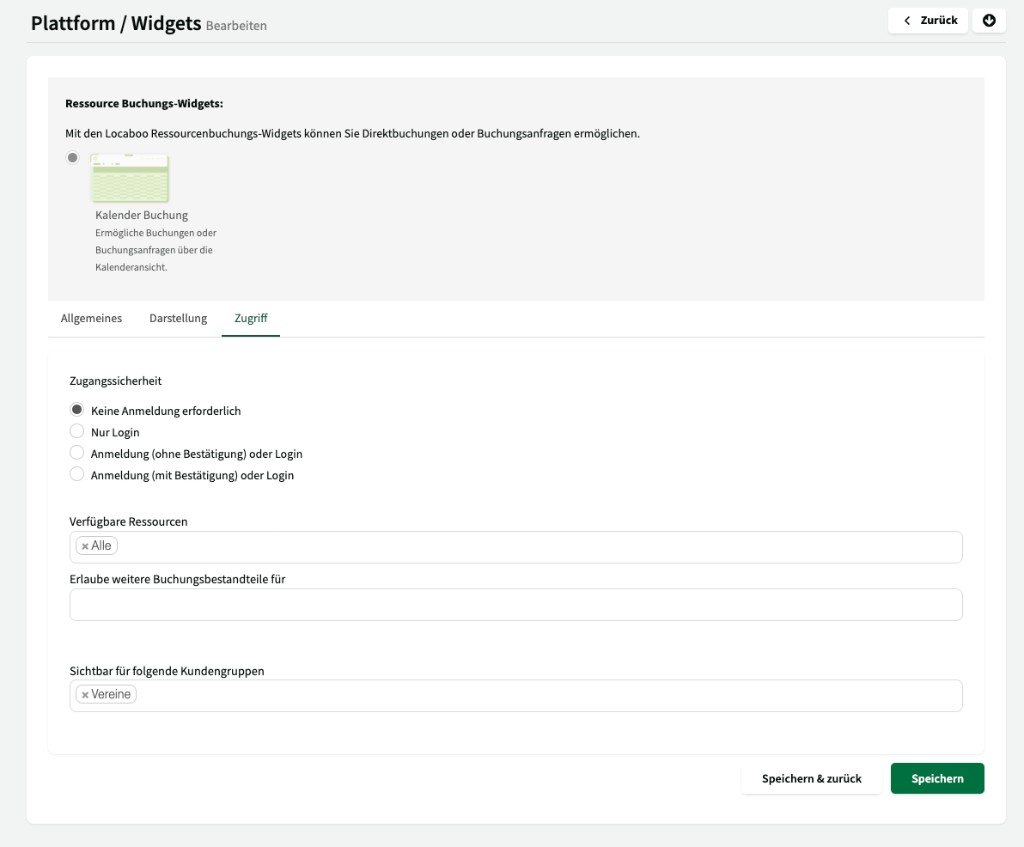
| Setting | Description |
|---|---|
| Access security | Whether and how customers must authenticate before access. |
| Available resources | Which resources are shown and bookable in this widget. Default: all. |
| Allow additional booking components for | Which extra booking components customers can select in the widget (e.g. inventory, services). |
| Visible for customer groups | Limits widget visibility to certain customer groups. |
Access security – four options are available:
| Option | Description |
|---|---|
| No login required | Anyone can use the widget without login. Suited to public booking views. |
| Login only | Customers must sign in with an existing account; they cannot register. |
| Register (without approval) or login | Customers can register and get immediate access with the default customer group rights. |
| Register (with approval) or login | Customers can register but must be approved by a manager/user first. |
Different widgets per customer group
Section titled “Different widgets per customer group”You can provide different widgets for different customer groups:
- Clubs might see a calendar widget with details on existing bookings (title, customer name).
- External guests might see a calendar where occupied slots appear only as “booked”.
- Widgets visible only after login suit customer groups with extended information rights.
Embed widget on website
Section titled “Embed widget on website”There are two ways to offer widgets on your website:
1. HTML embed (iframe)
Section titled “1. HTML embed (iframe)”On the widget’s General tab you find the HTML embed code. Copy it to the desired place on your website. The code works with common CMS systems (WordPress, TYPO3, etc.).
2. Link widget URL
Section titled “2. Link widget URL”Alternatively link your widget URL or booking platform URL directly on your website. You find URLs in the widget overview.
Privacy policy
Section titled “Privacy policy”If you embed widgets on your website, we recommend extending your privacy policy with a corresponding notice.
Hide resources in the widget
Section titled “Hide resources in the widget”There are two levels at which you control whether a resource is visible to customers:
- Remove resource from platform: under Resources > [Resource] > Settings disable Available on booking platform. The resource is then invisible in all widgets.
- Remove resource from a specific widget: on the widget’s Access tab, under Available resources select only the resources that should appear in this widget. Resources not listed stay hidden.
Read-only access for external parties (e.g. cleaning companies)
Section titled “Read-only access for external parties (e.g. cleaning companies)”To give external service providers read access to occupancy without booking details or customer names:
- Create a calendar view widget (view only, no booking).
- Disable Available on platform so the widget does not appear on the booking platform.
- Under Available resources select the relevant rooms.
- Under Public booking data disable all fields (no customer name, no title) – bookings appear only as “booked”.
- Share the direct widget URL with the cleaning company.
Booking platform from the customer’s perspective
Section titled “Booking platform from the customer’s perspective”This is how customers experience the platform:
| Feature | Description |
|---|---|
| Login | Email + password. Forgot-password function available. |
| Browse resources | Filter by date, time, duration, and category. |
| Create booking | Click and drag in the calendar → enter booking details → submit. |
| Customer account | Edit profile, manage contacts, view bookings, download invoices and e-invoices, submit damage reports. |
| Change language | Customers can switch the platform language themselves. |