

Platform / Widgets
Under Settings > Platform / Widgets, you configure your external booking platform and the associated widgets. ↗ Open in Locaboo
The settings are spread across six tabs: General, Colours & fonts, Settings, Legal notices, Success messages, and Languages.
Use the Go to widget list button (top right) to open your widget overview directly.
General
Section titled “General”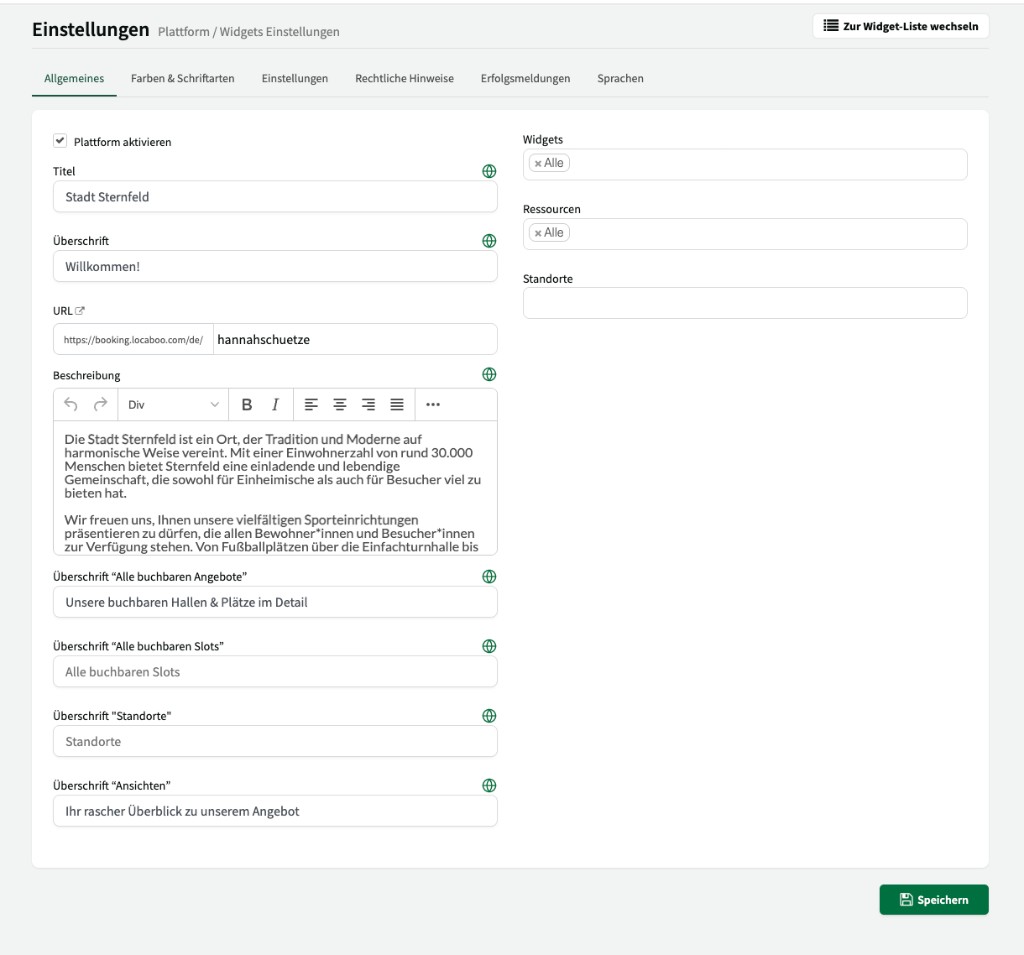
Here you configure the basic information for your booking platform.
Activate platform
Section titled “Activate platform”Your booking platform is enabled by default. Clear the checkbox if you do not want online booking by customers or staff.
Title & headline
Section titled “Title & headline”| Setting | Description |
|---|---|
| Title | The name of your platform – usually your organisation or company name (e.g. “City of Sternfeld”). |
| Headline | The main headline shown above the description text on the home page (e.g. “Welcome!”). |
The platform URL is the link where your booking platform is reachable (e.g. https://booking.locaboo.com/de/hannahschuetze). You can share this URL with customers or link it from your website.
Description
Section titled “Description”Formatted text shown on the platform home page. Use this area for general information or notes about your booking offer. The text can be formatted with the built-in rich text editor.
Custom headings
Section titled “Custom headings”Instead of the default headings, you can define your own text for different areas of your platform:
| Heading | Description |
|---|---|
| Heading “All bookable offers” | Title above the resource overview on the home page. |
| Heading “All bookable slots” | Title above the slot view. |
| Heading “Locations” | Title above the location overview. |
| Heading “Views” | Title above the widget / views overview. |
Visibility on the platform
Section titled “Visibility on the platform”| Setting | Description |
|---|---|
| Widgets | Which widgets are visible on the booking platform. Visibility of individual widgets can be restricted further per customer group in the widget settings. |
| Resources | Which resources are shown on the platform. Visibility can be restricted further per resource via availability. |
| Locations | Which locations are visible on the platform. |
Colours & fonts
Section titled “Colours & fonts”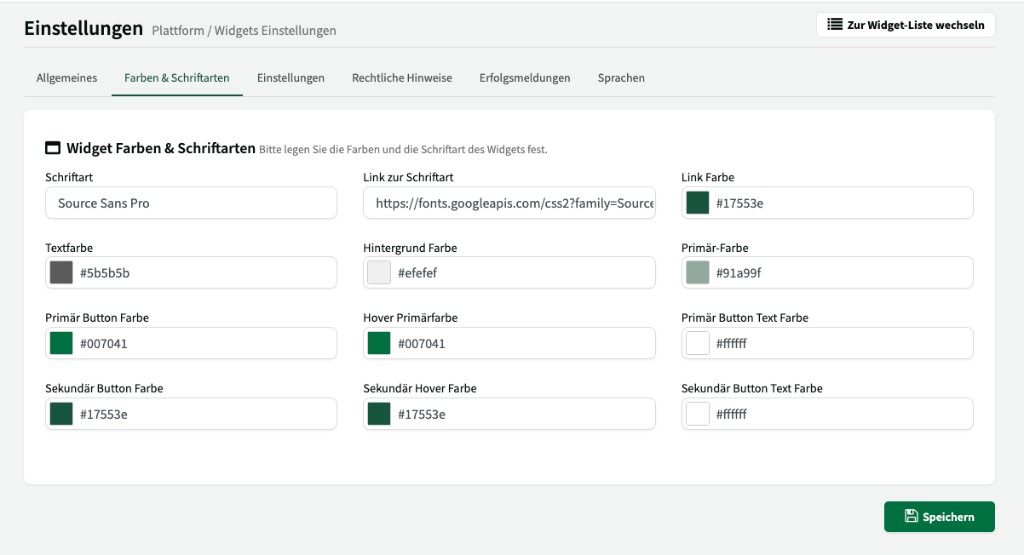
Here you adjust the appearance of your booking platform and widgets to match your corporate design.
| Setting | Description |
|---|---|
| Font | Name of the font used (e.g. “Source Sans Pro”). |
| Link to font | URL to a web font, e.g. from Google Fonts. |
Colours
Section titled “Colours”You can customise colours for links, text, background, and primary and secondary buttons individually. All colours are entered as hex values (e.g. #007041).
| Setting | Description |
|---|---|
| Link colour | Colour for hyperlinks. |
| Text colour | Default colour for body text. |
| Background colour | Platform background colour. |
| Primary colour | Primary accent colour (e.g. for highlights). |
| Primary button colour | Background colour of primary buttons. |
| Primary hover colour | Background colour of primary buttons on hover. |
| Primary button text colour | Text colour on primary buttons. |
| Secondary button colour | Background colour of secondary buttons. |
| Secondary hover colour | Background colour of secondary buttons on hover. |
| Secondary button text colour | Text colour on secondary buttons. |
Settings
Section titled “Settings”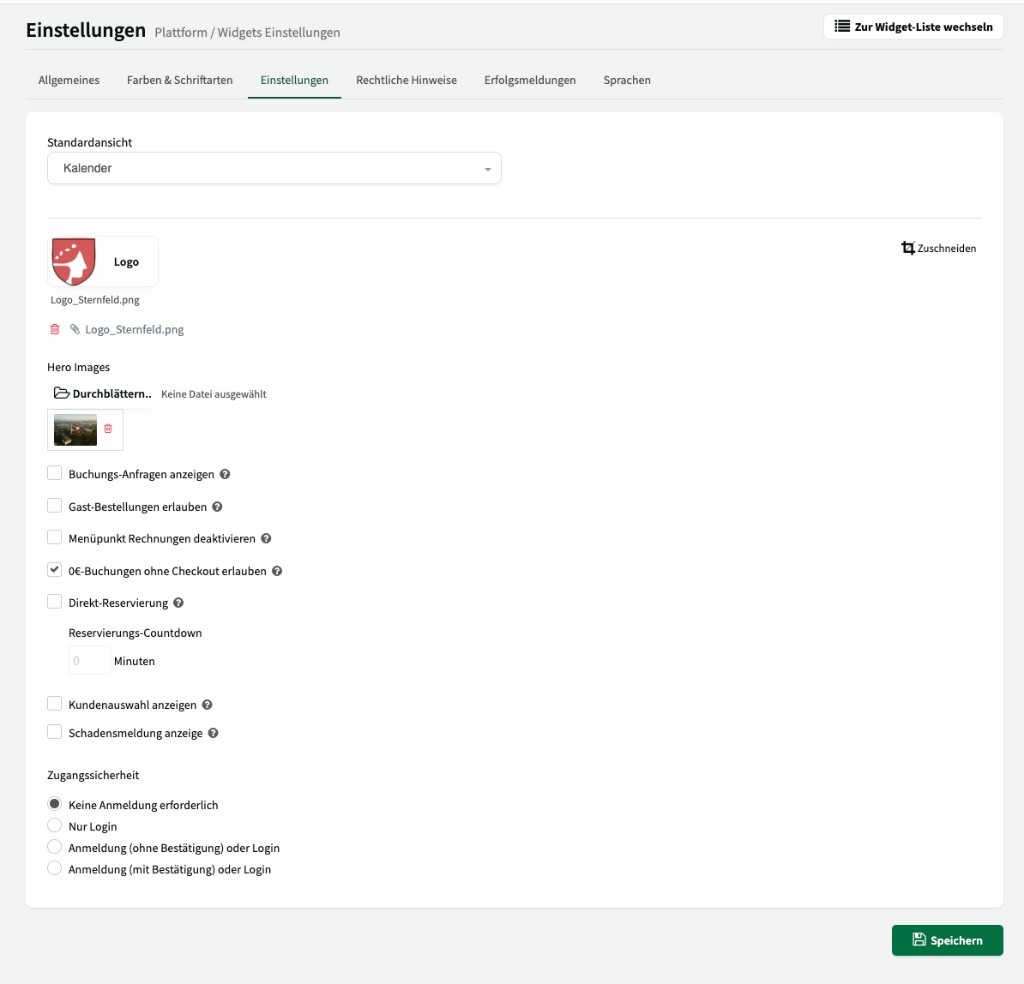
Here you configure platform behaviour and appearance in detail.
Default view
Section titled “Default view”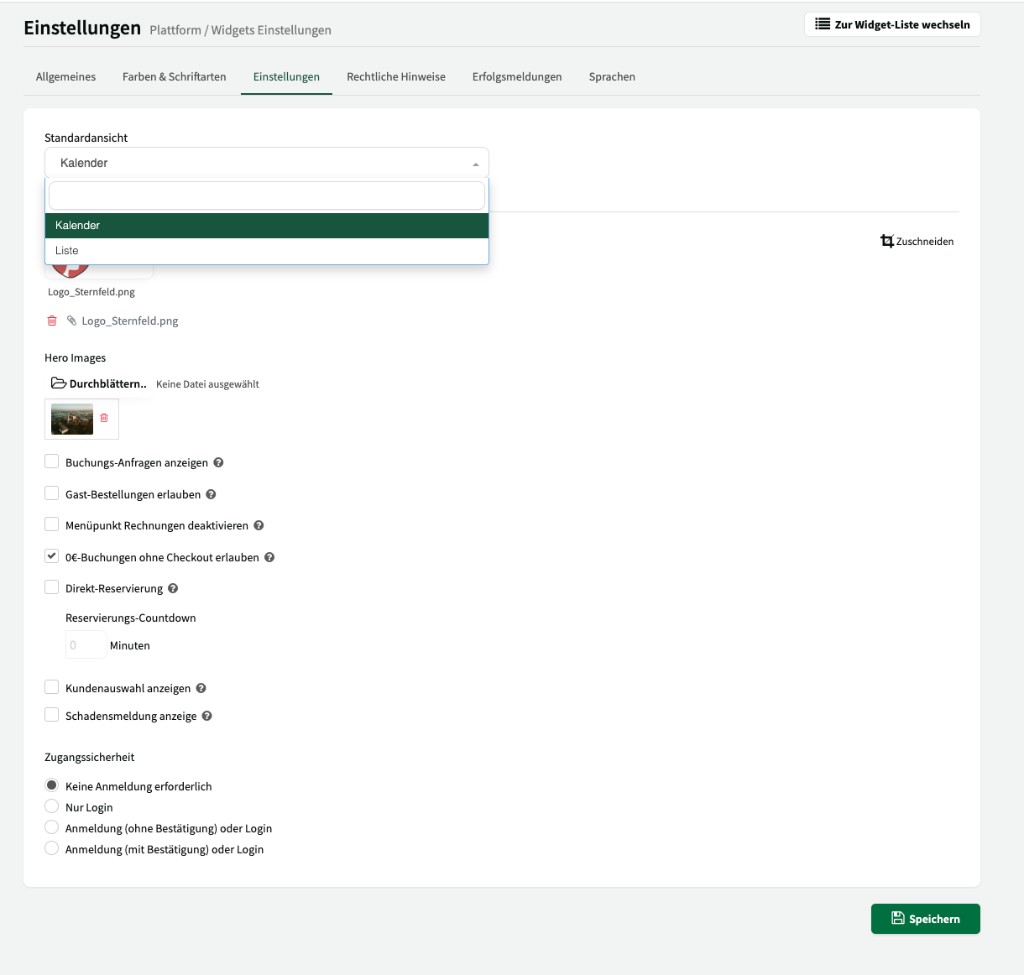
Defines which view customers see by default when they open a booking widget:
| Option | Description |
|---|---|
| Calendar | Calendar view with day, week, or month. Customers see occupancy for all resources at a glance and can book a free slot with one click. |
| List | List view of available booking slots. Useful when you have many resources or when customers search for free times specifically. |
Logo & hero images
Section titled “Logo & hero images”| Setting | Description |
|---|---|
| Logo | Your logo for the booking platform. It appears in the header of the home page. Use Crop to adjust the image area without changing the original file. |
| Hero images | Header images shown as large imagery on the platform home page. You can upload several images – they are shown as a gallery. Use the red bin icon to remove individual images. |
Show booking requests
Section titled “Show booking requests”When this checkbox is enabled, open booking requests are shown in the platform calendar like regular bookings. Other customers can see that a slot has been requested.
Important: If two customers book the same slot at the same time, no conflict occurs – it remains a request that can still be confirmed or declined.
Allow guest orders
Section titled “Allow guest orders”When enabled, customers can book without a customer account as guests. No registration or login is required. The guest only enters contact details during booking.
Disable invoices menu item
Section titled “Disable invoices menu item”Hides the Invoices menu item in the customer account on the booking platform. Logged-in customers no longer see the invoice overview.
General invoicing and sending invoices by email are not affected – only the display in the customer account is suppressed.
Allow €0 bookings without checkout
Section titled “Allow €0 bookings without checkout”When enabled, free bookings (€0) can be completed without the checkout flow. Customers go straight to confirmation without the cart and payment page.
Useful when you offer resources at no charge and want the booking process to be as simple as possible.
Direct reservation
Section titled “Direct reservation”With direct reservation, a booking slot is temporarily blocked as soon as a customer adds it to the cart. That reduces the chance of two customers booking the same slot at once.
| Setting | Description |
|---|---|
| Direct reservation | Enables temporary blocking of slots in the cart. |
| Reservation countdown | Duration in minutes for how long a slot stays reserved in the cart. The countdown is visible to the customer. When it expires, the slot is released automatically. |
Show customer selection
Section titled “Show customer selection”When enabled, a customer selection is shown in the widget. Customers can then view bookings for a specific customer.
Show damage report
Section titled “Show damage report”When enabled, a button to report damage appears in the customer’s booking list. Customers can report damage for past bookings and add images and a description.
Incoming damage reports are available under Communication > Damage reports. Users with the appropriate permission receive an email notification.
Access security
Section titled “Access security”Define how customers must authenticate on your booking platform. This controls whether the platform is public or requires registration or login.
| Option | Description |
|---|---|
| No login required | The platform is open to everyone. Anyone can view resources and availability and book (depending on availability settings) – without registration or login. |
| Login only | Only existing customers with login credentials can use the platform. Self-registration is not possible – customers must be created and invited in advance. |
| Registration (without confirmation) or login | New customers can register themselves and book immediately. No manager approval is required. Existing customers sign in as usual. |
| Registration (with confirmation) or login | New customers can register but must be approved by a manager or user before they can book. Use this when you want to control who gets booking access. |
Legal notices
Section titled “Legal notices”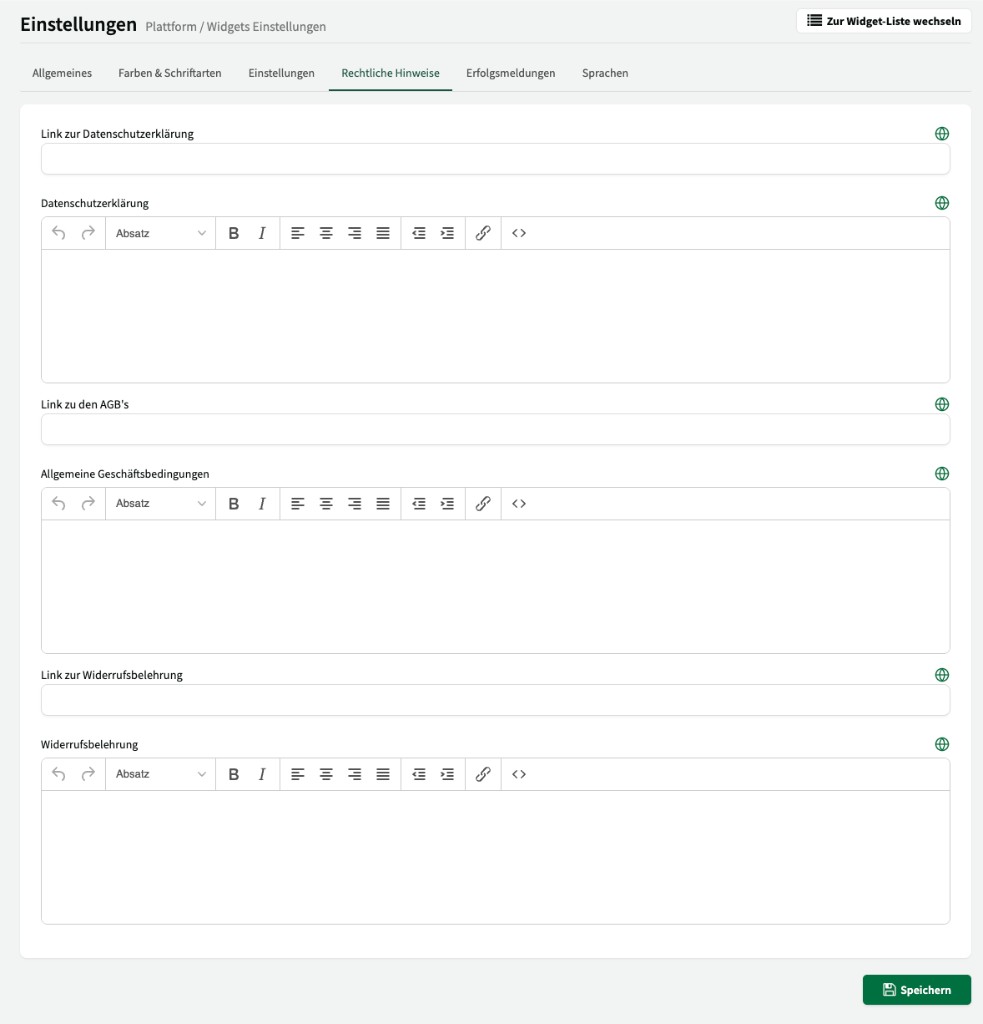
Enter your legal texts here. For each text you can either set a link to an external website or enter the text directly in the rich text editor.
| Legal text | Fields |
|---|---|
| Privacy policy | Link to privacy policy + text field |
| Terms and conditions | Link to terms + text field |
| Cancellation policy | Link to cancellation policy + text field |
Use the globe icon to store a separate translation of the legal texts for each enabled language.
Success messages
Section titled “Success messages”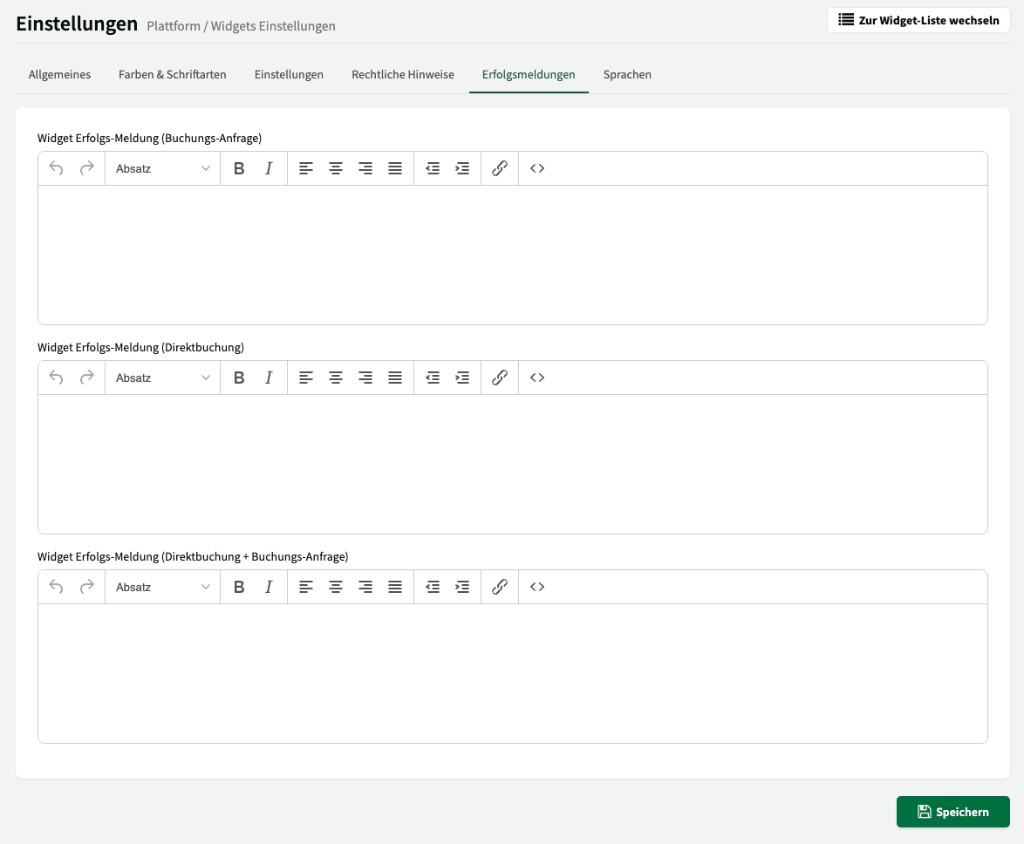
Define the texts customers see after completing a booking. Each booking type has its own field with rich text editor:
| Message | Shown when |
|---|---|
| Widget success message (booking request) | Bookings submitted as requests that still need confirmation. |
| Widget success message (instant booking) | Bookings that are confirmed immediately (instant booking). |
| Widget success message (instant booking + booking request) | Bookings that contain both instantly confirmed slots and request slots (e.g. multi-resource bookings with different availability settings). |
Languages
Section titled “Languages”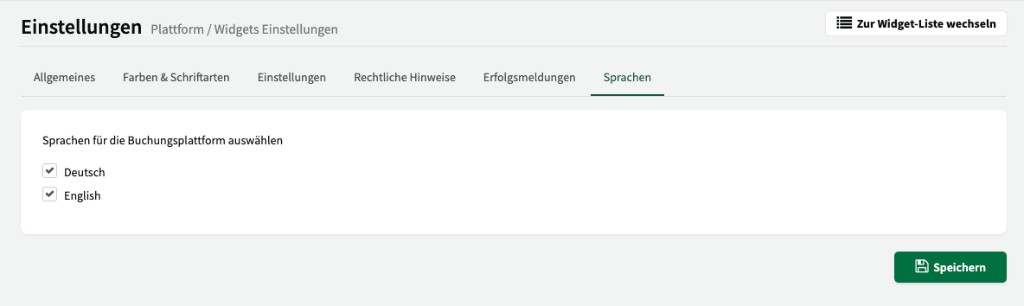
Define which languages are available on your booking platform. Customers can switch the language on the platform themselves.