

Invoice
Under Settings > Invoice you configure everything related to invoices, quotes, order confirmations, and cancellation invoices. The settings are spread across several tabs: Prefixes & number ranges (↗ open), Advanced settings (↗ open), Finance settings (↗ open), Backgrounds (↗ open), and Automatic invoice dispatch (↗ open).
Prefixes & number ranges
Section titled “Prefixes & number ranges”For each document type you set a prefix and a start number:
| Document type | Example prefix | Description |
|---|---|---|
| Invoice | RE- | Sequential numbers for invoices |
| Quote | AG- | Sequential numbers for quotes |
| Order confirmation | AB- | Sequential numbers for order confirmations |
| Cancellation invoice | SR- | Sequential numbers for cancellation invoices |
Each document type has its own fields for prefix and start number. Numbering runs sequentially and increments automatically. Invoice numbers cannot be set lower than the last issued invoice number.
Adjusting invoice numbers at year change
Section titled “Adjusting invoice numbers at year change”Invoice numbering runs continuously and is not reset automatically at year change. If you want to start fresh each year, adjust the start number manually at the beginning of the year. You can include a year in the prefix (e.g. RE-2026-) to assign invoices clearly to a year.
Advanced settings
Section titled “Advanced settings”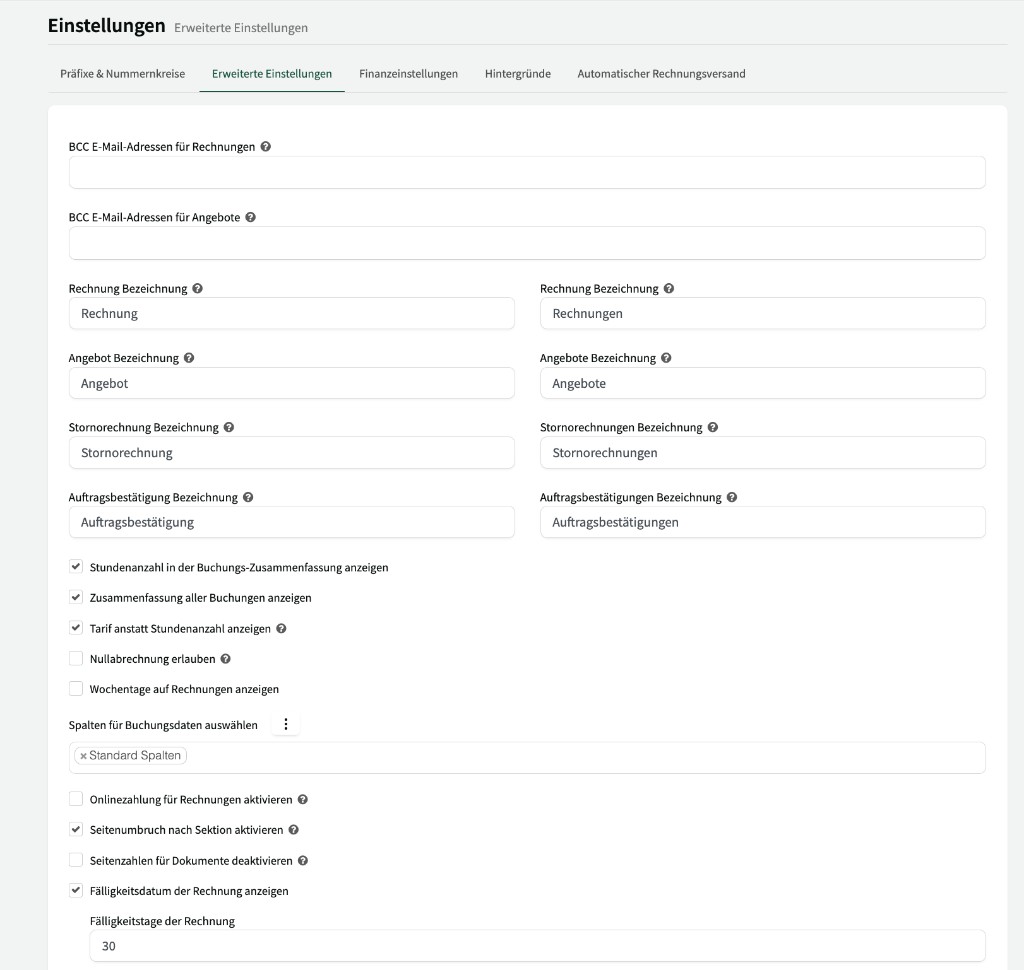
Here you fine-tune the appearance and content of your documents.
BCC email addresses
Section titled “BCC email addresses”| Setting | Description |
|---|---|
| BCC email addresses for invoices | Email addresses that receive a blind copy on every invoice send (e.g. your accounting team). |
| BCC email addresses for quotes | Email addresses that receive a blind copy on every quote send. |
Document labels
Section titled “Document labels”Adjust the labels shown on your documents and in the user interface. For each document type there is singular and plural:
| Document type | Singular (default) | Plural (default) |
|---|---|---|
| Invoice | Invoice | Invoices |
| Quote | Quote | Quotes |
| Cancellation invoice | Cancellation invoice | Cancellation invoices |
| Order confirmation | Order confirmation | Order confirmations |
Display options
Section titled “Display options”These options control which information appears on your documents and how it is shown.
| Setting | Description |
|---|---|
| Show hours in booking summary | Shows booked hours in the summary on the document. |
| Show summary of all bookings | Adds an overall summary of all bookings to the document. |
| Show tariff instead of hours | When enabled, tariff units are shown on the document instead of hours. |
| Allow zero invoices | Allows creating invoices with an amount of €0. |
| Show weekdays on invoices | Shows the weekday next to the booking date on the invoice. |
| Select columns for booking data | Determines which columns appear in the booking overview on documents (e.g. date, resource, duration). |
Payment & layout
Section titled “Payment & layout”These settings affect payment options and page layout of your documents.
| Setting | Description |
|---|---|
| Enable online payment for invoices | Lets customers pay invoices online directly. Prerequisite: payment methods must be configured under Settings. |
| Enable page break after section | Inserts a page break after each section (e.g. per resource) so bookings for different resources appear on separate pages. |
| Disable page numbers for documents | Hides page numbering on documents. |
| Show invoice due date | Shows the due date on the invoice. Use the Due days field to set how many days until the invoice is due (default: 30 days). |
| Allow multiple documents per booking | Allows creating several separate invoices or documents for one booking. |
Booking reference vs. invoice number
Section titled “Booking reference vs. invoice number”If booking reference is enabled under Finance settings, it replaces the invoice number on all documents and throughout the user interface. The label “Invoice number” is then replaced by “Booking reference”. To show the regular invoice number again, disable the booking reference or enable Show invoice number separately next to booking reference.
Custom booking description on invoice (legacy)
Section titled “Custom booking description on invoice (legacy)”A free-text field for a custom description shown on invoices. This is a legacy feature – use introduction and closing texts instead.
Introduction and closing texts
Section titled “Introduction and closing texts”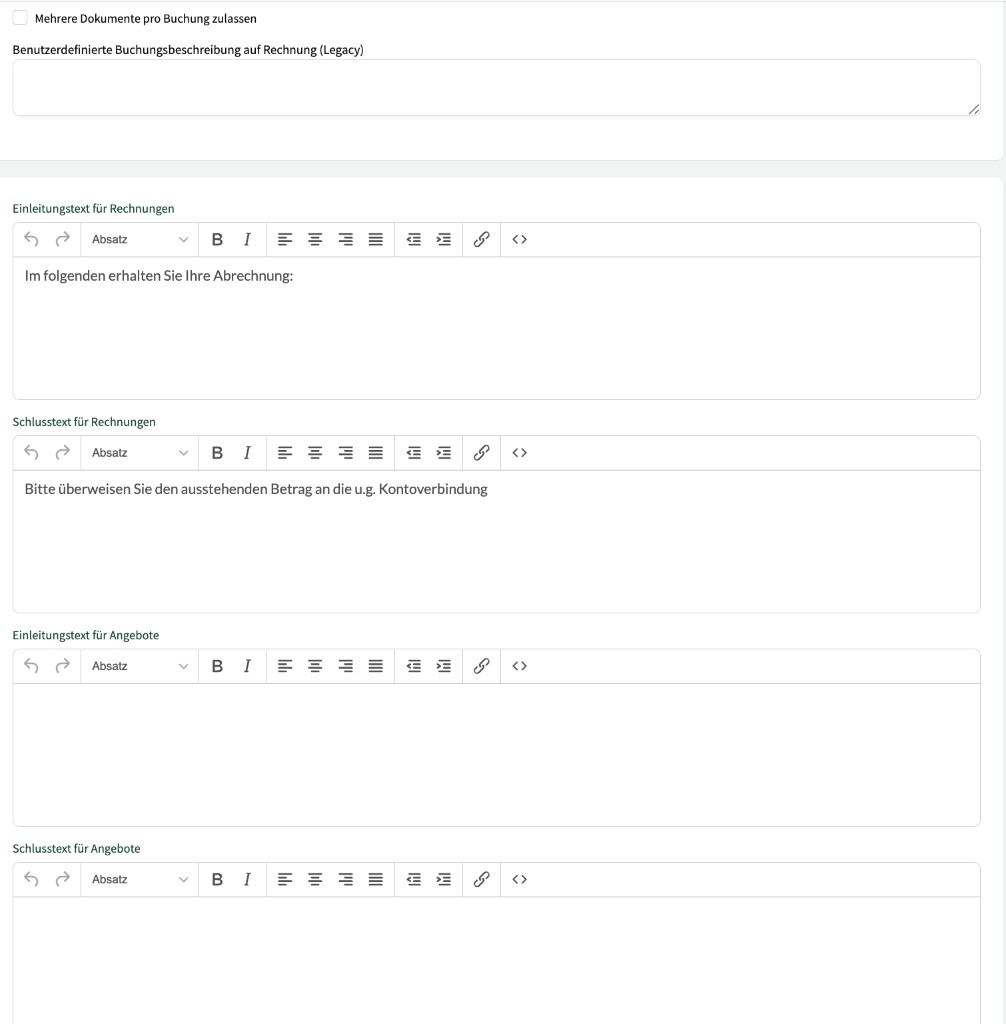
For each document type you can store an introduction text (at the top of the document) and a closing text (at the end). Texts can be formatted with the built-in rich text editor.
| Text field | Description |
|---|---|
| Introduction text for invoices | Text at the beginning of every invoice (e.g. “Below you will find your statement:”). |
| Closing text for invoices | Text at the end of the invoice (e.g. payment instructions, bank details). |
| Introduction text for quotes | Text at the beginning of every quote. |
| Closing text for quotes | Text at the end of every quote. |
| Introduction text for order confirmations | Text at the beginning of every order confirmation. |
| Closing text for order confirmations | Text at the end of every order confirmation. |
| Opening text for cancellation invoices | Text at the beginning of every cancellation invoice. |
| Closing text for cancellation invoices | Text at the end of every cancellation invoice. |
Position & order
Section titled “Position & order”| Setting | Description |
|---|---|
| Position of closing text | Whether the closing text appears on the first page or the last page of the document. |
| Order of bookings on documents | Whether bookings are sorted ascending (oldest first) or descending (newest first). |
Finance settings
Section titled “Finance settings”Here you configure booking references, cost centres, and other accounting-related settings for your documents.
Booking reference
Section titled “Booking reference”Enable the Enable booking reference checkbox to use an automatic booking reference on your documents.
| Setting | Description |
|---|---|
| Booking reference | Template for the booking reference. Available placeholders: [costcentre], [customerno], [YY], [YYYY], [invoiceno], [customer_account_number]. |
| EpayBL booking reference number prefix | Optional prefix for the EpayBL booking reference number. |
| Append modulo check digit to booking reference | Appends a check digit to the booking reference. Options: None, Modulo 10, or Modulo 11. |
| Show invoice number separately next to booking reference | Shows the invoice number in addition next to the booking reference on the document. |
General ledger account & cost centre
Section titled “General ledger account & cost centre”| Setting | Description |
|---|---|
| Enable general ledger account | Enables the general ledger account field for your documents. |
| Enable cost centre | Enables the cost centre field for your documents. |
| Cost object | Free-text field for the cost object. |
Deposit & cancellation fee
Section titled “Deposit & cancellation fee”For deposit and cancellation fee you can each store an expense/revenue type and a product:
| Area | Fields |
|---|---|
| Deposit | Expense/revenue type, product |
| Cancellation fee | Expense/revenue type, product |
Backgrounds
Section titled “Backgrounds”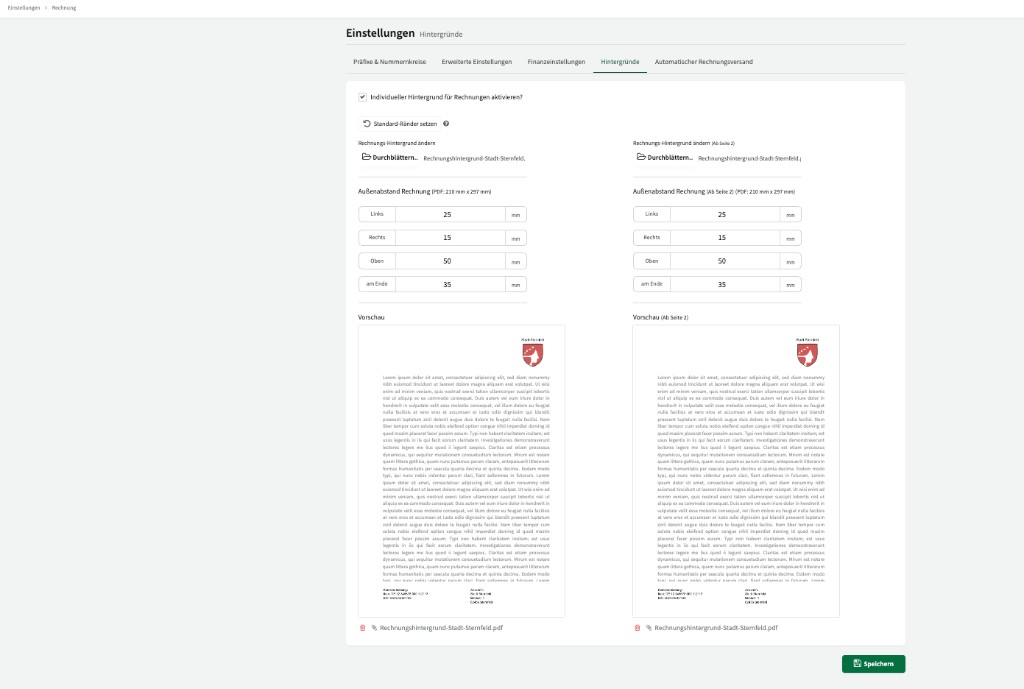
Here you upload custom invoice paper (e.g. with your letterhead) and adjust page margins.
Custom background
Section titled “Custom background”Enable Enable custom background for invoices? to use your own background image for documents.
You can upload two separate backgrounds:
| Area | Description |
|---|---|
| Change invoice background | Background for the first page of the document (e.g. full letterhead). |
| Change invoice background (from page 2) | Background for all following pages (e.g. simplified header). |
Use Set default margins to reset outer margins to default values.
Invoice outer margin
Section titled “Invoice outer margin”For the first page and following pages you can configure page margins separately (values in mm, PDF format 210 mm × 297 mm):
| Margin | Description |
|---|---|
| Left | Distance from the left edge of the page |
| Right | Distance from the right edge of the page |
| Top | Distance from the top edge of the page |
| Bottom | Distance from the bottom edge of the page |
Below the settings you see a preview for the first page and a preview (from page 2) so you can check the result before saving.
Bank details, tax number, and sender address on invoices
Section titled “Bank details, tax number, and sender address on invoices”Locaboo does not provide separate fields for bank details, tax number, or sender address on invoices. Store this information via the PDF background (your letterhead). Design your letterhead PDF so bank details, tax number, and sender address sit where you need them, and upload it as the background.
Positioning page numbers and bank details
Section titled “Positioning page numbers and bank details”If page numbers or bank details are covered, adjust the content in the PDF background: place bank details in the footer slightly higher so page numbers fit below. Alternatively, disable page numbers for documents (under Advanced settings).
Automatic invoice dispatch
Section titled “Automatic invoice dispatch”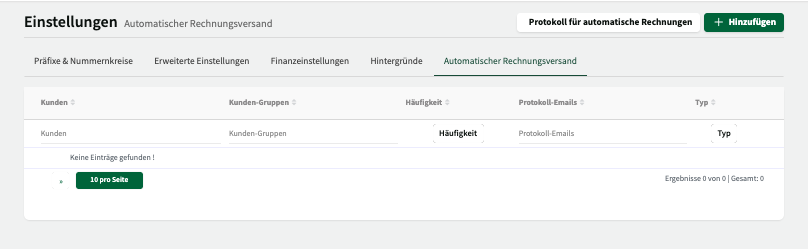
Here you define rules according to which Locaboo creates and sends invoices automatically. Use + Add to create a new rule.
| Column | Description |
|---|---|
| Customers | Which customers the rule applies to. |
| Customer groups | Which customer groups the rule applies to. |
| Frequency | How often invoices are created automatically (e.g. monthly or per season). |
| Protocol emails | Email addresses that receive a notification about the automatic dispatch. |
Use Log for automatic invoices to open an overview of all invoices created and sent automatically so far.