

Emails
Under Settings > Emails you configure automatically sent emails. The settings are spread across three tabs: Email text (↗ open), Email configuration (↗ open), and Advanced email settings (↗ open).
Email text
Section titled “Email text”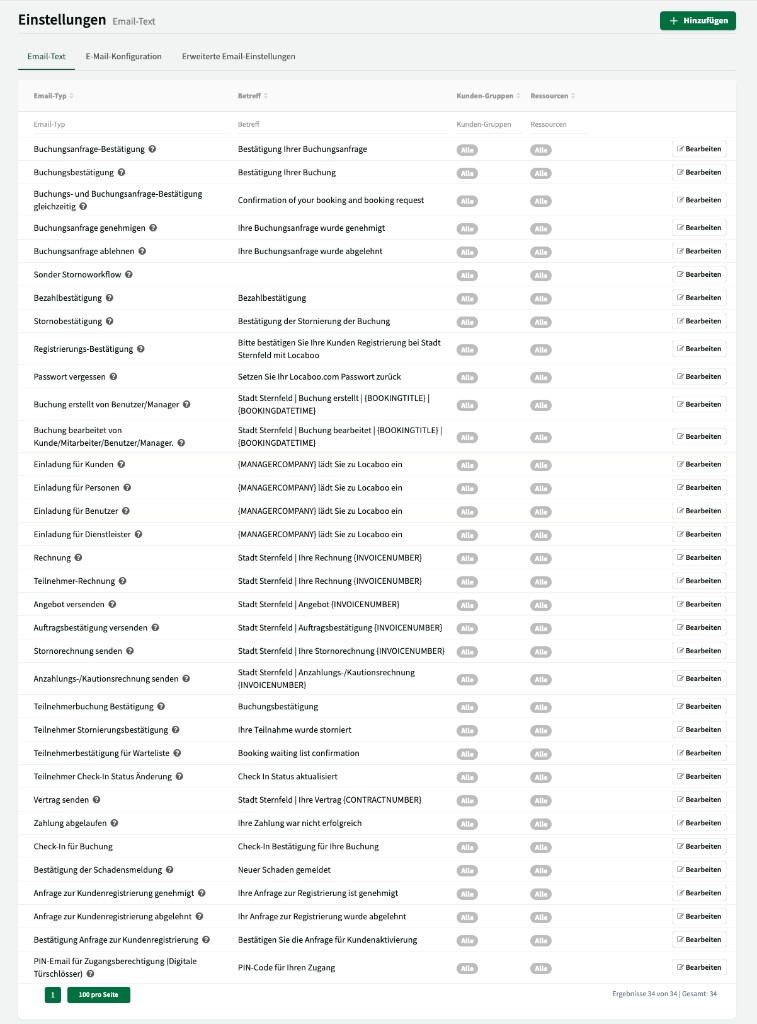
Locaboo sends automatic emails to your customers for various events. The overview lists all email types with subject, assigned customer groups, and resources. Use Edit to customise each text individually.
Use + Add to create a new customised version of an email type – for example a dedicated text for a specific customer group or resource.
Email types
Section titled “Email types”Locaboo supports many email types covering the entire booking, billing, and registration process.
| Email type | Description |
|---|---|
| Booking request confirmation | Confirmation to the customer that their booking request was received. |
| Booking confirmation | Confirmation of a directly booked booking. |
| Booking and booking request confirmation at once | For multi-resource bookings with different availability settings (instant booking + request). |
| Booking request approved | Notification to the customer that their booking request was approved. |
| Booking request rejected | Notification to the customer that their booking request was rejected. |
| Special cancellation workflow | Email for a special cancellation process. |
| Payment confirmation | Confirmation of a received payment. |
| Cancellation confirmation | Confirmation of a cancelled booking. |
| Registration confirmation | Prompt to the manager to confirm a customer registration. |
| Forgot password | Email to reset the password. |
| Booking created by user/manager | Notification to the customer when a user or manager created a booking on their behalf. |
| Booking edited by customer/staff/user/manager | Notification about changes to an existing booking. |
| Customer invitation | Invitation email for new customers to register on the platform. |
| People invitation | Invitation email for people (e.g. trainers, instructors). |
| User invitation | Invitation email for administrative users. |
| Service provider invitation | Invitation email for service providers. |
| Invoice | Email with the invoice attached. |
| Participant invoice | Email with the participant invoice attached. |
| Send quote | Email with a quote attached. |
| Send order confirmation | Email with an order confirmation attached. |
| Send cancellation invoice | Email with a cancellation invoice attached. |
| Send deposit/caution invoice | Email with a deposit or caution invoice attached. |
| Participant booking confirmation | Booking confirmation for participants (add-on seminars & courses). |
| Participant cancellation confirmation | Confirmation of cancelled participation. |
| Participant waitlist confirmation | Confirmation of being placed on a waitlist. |
| Participant check-in status change | Notification when a participant’s check-in status changes. |
| Send contract | Email with a contract attached (add-on contract manager). |
| Payment expired | Notification when an online payment failed. |
| Check-in for booking | Confirmation of a check-in. |
| Damage report confirmation | Notification about a received damage report. |
| Customer registration request approved | Notification to the customer that their registration was approved. |
| Customer registration request rejected | Notification to the customer that their registration was rejected. |
| Customer registration request confirmation | Prompt to the manager to review a customer registration. |
| PIN email for access (digital door locks) | PIN code for access via digital door locks (e.g. Tapkey). |
Customisation by customer group and resource
Section titled “Customisation by customer group and resource”For each email type you can create customised texts differentiated by customer group and/or resource. Clubs might receive different confirmation texts than private individuals.
For multi-resource bookings, the text of the first resource is used.
Default texts
Section titled “Default texts”Default texts can be edited but not deleted. They serve as a fallback when no customised text is stored for the given customer group/resource combination.
Placeholders
Section titled “Placeholders”You can use placeholders in email texts that are replaced automatically when sending:
| Placeholder | Description |
|---|---|
{SALUTATION} | Customer salutation |
{FIRSTNAME} | Customer first name |
{LASTNAME} | Customer last name |
{EMAIL} | Customer email address |
{COMPANY} | Customer company name |
{BOOKEDDATE} | Booking date |
{BOOKINGDATETIME} | Booking date and time |
{BOOKINGTITLE} | Booking title |
{MANAGERCOMPANY} | Your company name |
{INVOICENUMBER} | Invoice number |
{CONTRACTNUMBER} | Contract number |
Email configuration
Section titled “Email configuration”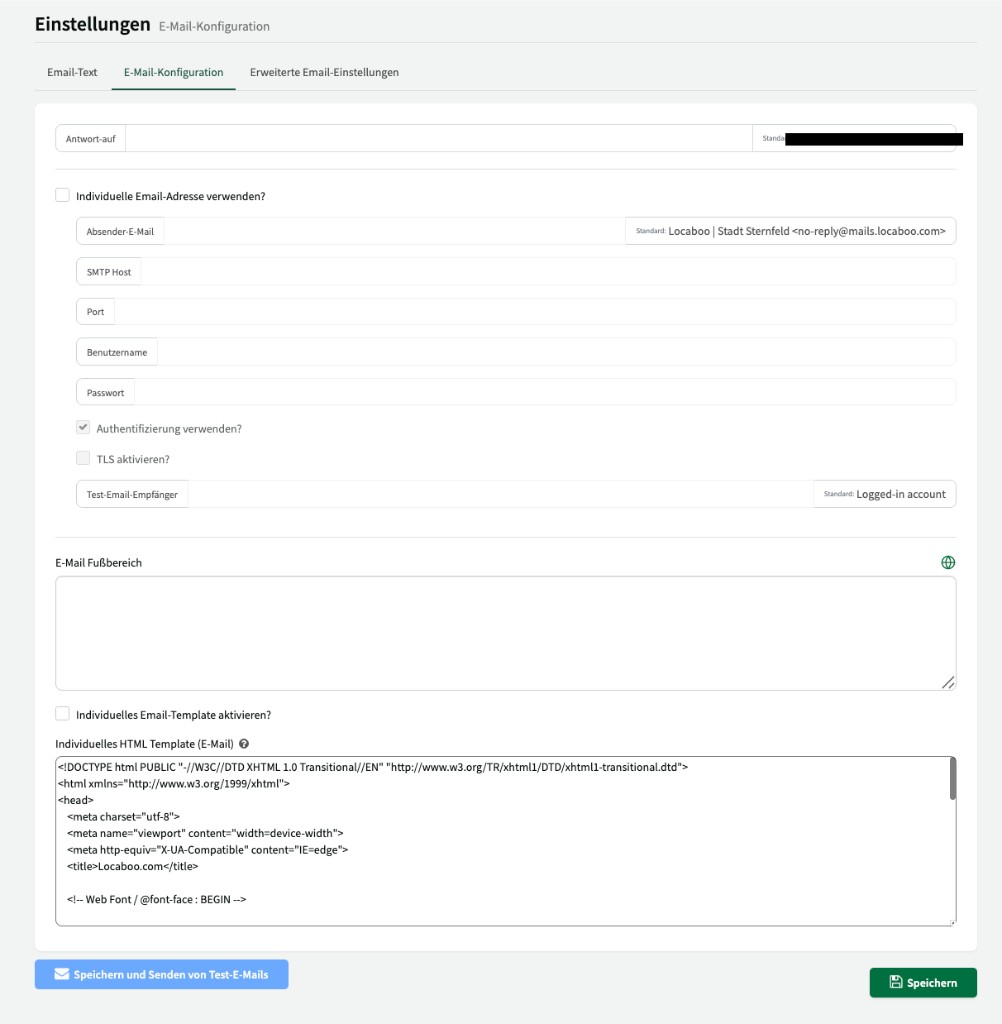
Here you can adjust email delivery technically.
Reply-to
Section titled “Reply-to”Sets the email address replies to automatic emails are sent to. By default the logged-in account’s email address is used.
Custom email address
Section titled “Custom email address”Enable Use custom email address? to send emails via your own SMTP server instead of Locaboo’s default sender.
| Setting | Description |
|---|---|
| Sender email | The email address shown as sender. Default: `Locaboo |
| SMTP host | Hostname of your SMTP server (e.g. smtp.myserver.com). |
| Port | SMTP server port (e.g. 587 for TLS). |
| Username | Username for SMTP authentication. |
| Password | Password for SMTP authentication. |
| Use authentication? | Enables authentication with the SMTP server. |
| Enable TLS? | Enables TLS encryption for email sending. |
| Test email recipient | Email address for test sends. Default: logged-in account’s email. |
Use Save and send test emails to test the configuration.
Email footer
Section titled “Email footer”A free-text footer appended to all outgoing emails (e.g. contact details, opening hours, legal notices). Use the globe icon to add translations.
Custom HTML template
Section titled “Custom HTML template”Enable Enable custom email template? to replace Locaboo’s default HTML template with your own. The template is stored as HTML and defines the full layout of your emails.
Formatting issues in emails
Section titled “Formatting issues in emails”If email texts do not display as expected (e.g. grey backgrounds, different fonts, wrong paragraphs), that is often due to formatted text copied from Word or another program. Different email clients (Outlook, Gmail, Apple Mail) interpret HTML differently.
To avoid formatting issues:
- Use consistent formatting in the editor
- Avoid copying formatted text from Word – use “Paste as plain text” (Ctrl+Shift+V) instead
- Avoid nested lists and heavy formatting
Advanced email settings
Section titled “Advanced email settings”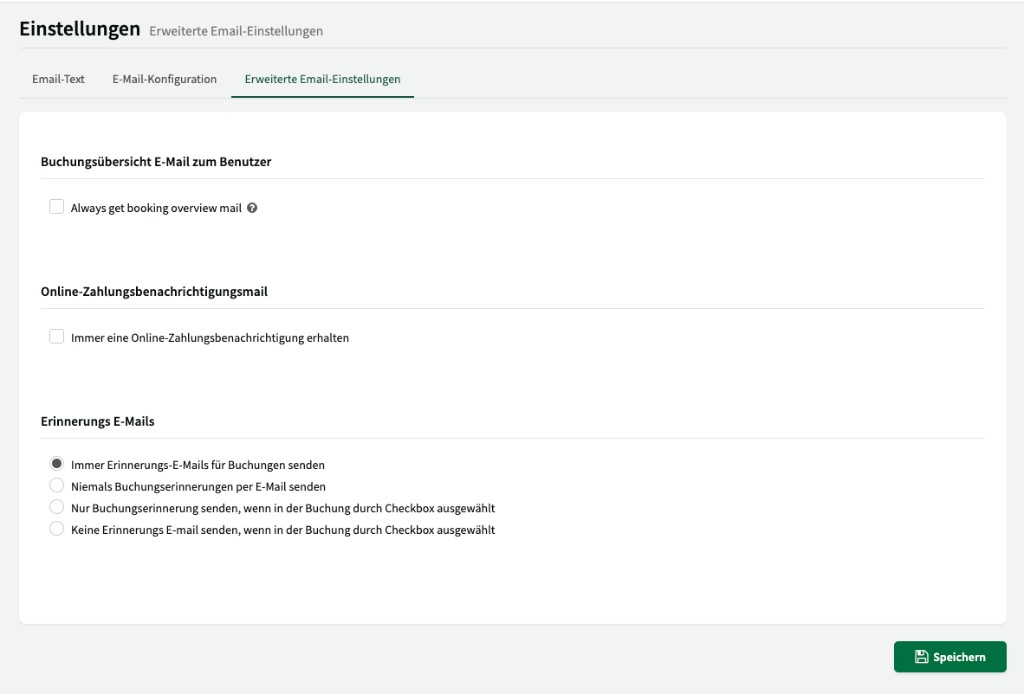
Here you configure cross-cutting email options.
Booking overview email to user
Section titled “Booking overview email to user”| Setting | Description |
|---|---|
| Always get booking overview mail | When enabled, the user receives an overview email for every booking – whether the booking was created by the customer or internally. |
Online payment notification email
Section titled “Online payment notification email”| Setting | Description |
|---|---|
| Always receive online payment notification | When enabled, you receive a notification email for every online payment received. |
Reminder emails
Section titled “Reminder emails”Controls whether and when reminder emails for bookings are sent. The reminders themselves are configured under Communication > Reminders.
| Option | Description |
|---|---|
| Always send reminder emails for bookings | Reminders are sent for all bookings (default). |
| Never send booking reminders by email | Do not send reminders. |
| Only send booking reminder when selected by checkbox in booking | Reminder only if a checkbox is enabled on the respective booking. |
| Do not send reminder email when selected by checkbox in booking | Reminder for all bookings except when the checkbox on the booking is enabled. |