

Customer registration
Under Settings > Customer registration, you define which fields are shown when new customers register on your booking platform and which of them are required. ↗ Open in Locaboo
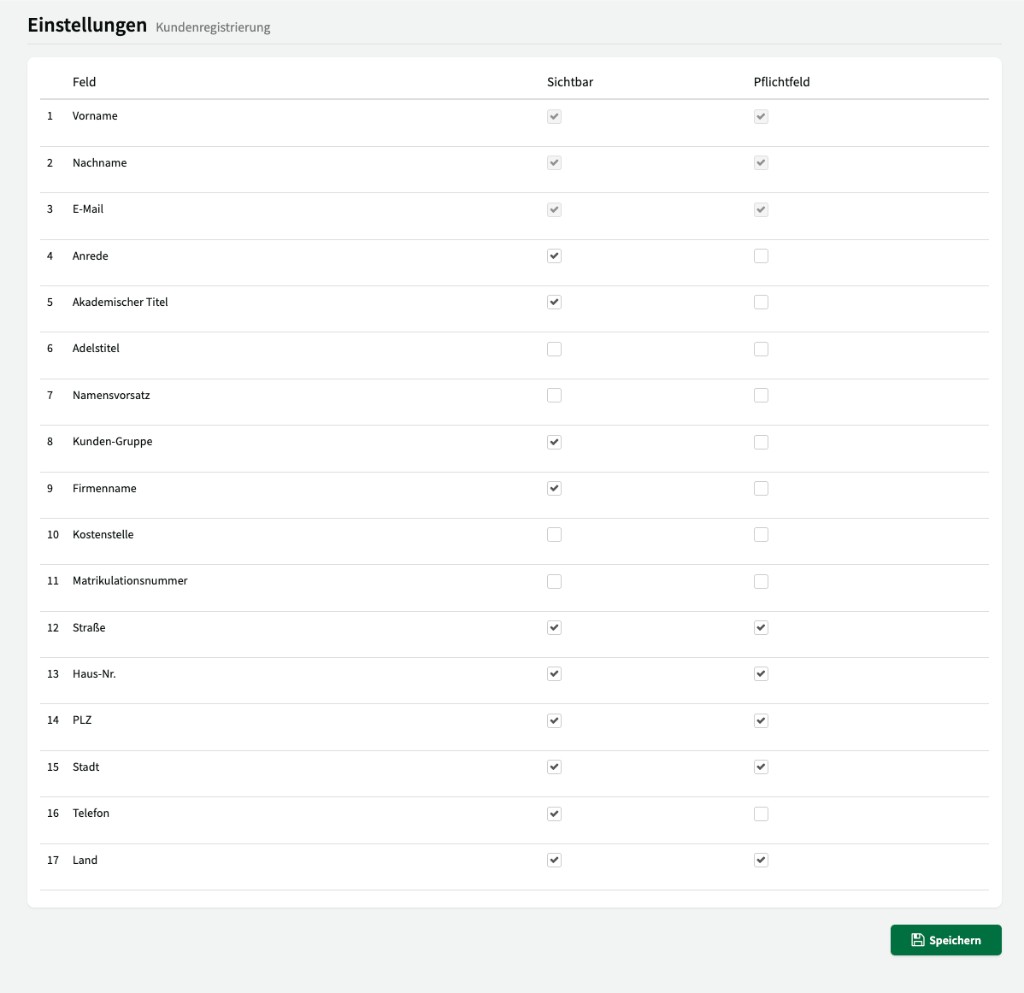
Configuring fields
Section titled “Configuring fields”Each field can be controlled individually:
| Column | Description |
|---|---|
| Visible | When enabled, the field appears in the registration form on the booking platform. |
| Required | When enabled, the field must be filled in before registration can be completed. |
Available fields
Section titled “Available fields”The following fields are available for configuration—from contact details to organisation-specific information:
| No. | Field | Description |
|---|---|---|
| 1 | First name | Customer’s first name. |
| 2 | Last name | Customer’s last name. |
| 3 | Email address – used for login and communication. | |
| 4 | Salutation | Salutation (e.g. Mr, Ms). |
| 5 | Academic title | Academic title (e.g. Dr, Prof.). |
| 6 | Nobiliary particle | Nobiliary particle (e.g. von, zu). |
| 7 | Name prefix | Name prefix. |
| 8 | Customer group | Lets the customer choose a customer group during registration. |
| 9 | Company name | Name of the company or organisation. |
| 10 | Cost centre | Customer’s cost centre (e.g. for internal billing). |
| 11 | Matriculation number | Matriculation number (e.g. for universities). |
| 12 | Street | Street name of the address. |
| 13 | House no. | House number. |
| 14 | Postcode | Postcode. |
| 15 | City | City / town. |
| 16 | Phone | Phone number. |
| 17 | Country | Customer’s country. |
Customer group at registration
Section titled “Customer group at registration”If the Customer group field is visible, customers can choose their customer group themselves during registration. Prerequisite: the respective customer group must have Allow selection in booking widget enabled.
If the field is not visible, the customer is automatically assigned the default customer group.
Adding custom fields
Section titled “Adding custom fields”Via Custom fields (tab Customers), you can add extra custom questions to the registration form – e.g. “Club membership”, “Department”, or “Member number”. These fields appear automatically in the registration form when they are created for the “Customers” area and configured as visible.