

Custom fields
Under Settings > Custom fields, you create additional input fields shown for bookings, resources, or customers. The fields are organised in three tabs: Bookings (↗ open), Resources (↗ open), and Customers (↗ open).
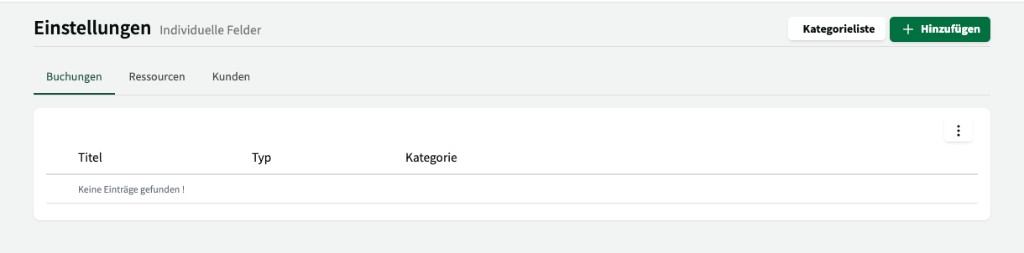
Use the + Add button to create a new field. Use Category list to manage categories for grouping fields.
Creating a field
Section titled “Creating a field”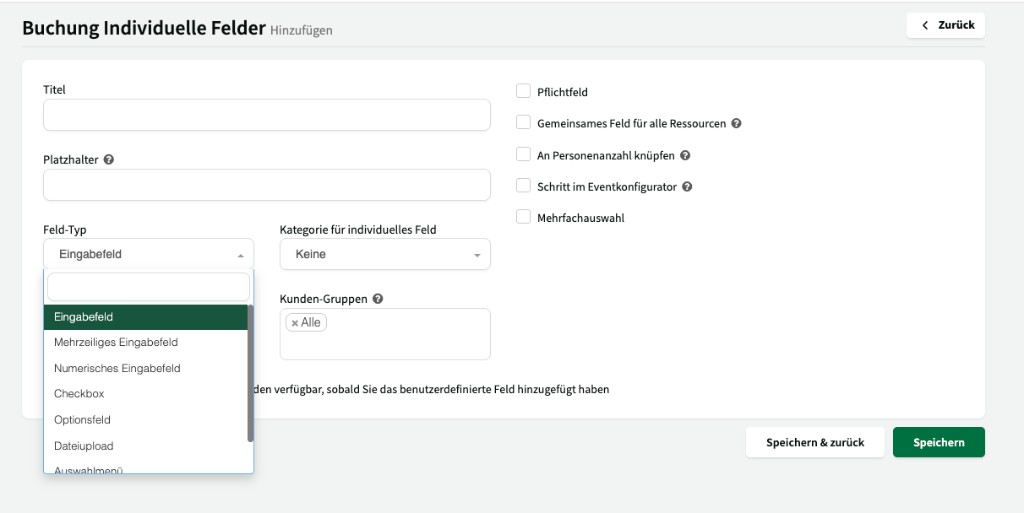
When creating a new field, the following settings are available:
Basic settings
Section titled “Basic settings”| Setting | Description |
|---|---|
| Title | Name of the field as shown on the booking / resource / customer. |
| Placeholder | Helper text shown in the empty field (e.g. “Please enter…”). |
| Field type | Type of input field (see Field types). |
| Category for custom field | Optional category to group fields. |
| Customer groups | Which customer groups can see the field. Default: All. |
Options
Section titled “Options”| Option | Description |
|---|---|
| Required | When enabled, the field must be filled in before the booking can be saved. |
| Shared field for all resources | The field is automatically assigned to all resources and does not need to be configured per resource. |
| Tie to number of persons | The field is tied to the number of participants. |
| Step in event configurator | The field is shown as its own step in the event configurator. |
| Multi-select | Allows selecting multiple values (relevant only for certain field types). |
Field types
Section titled “Field types”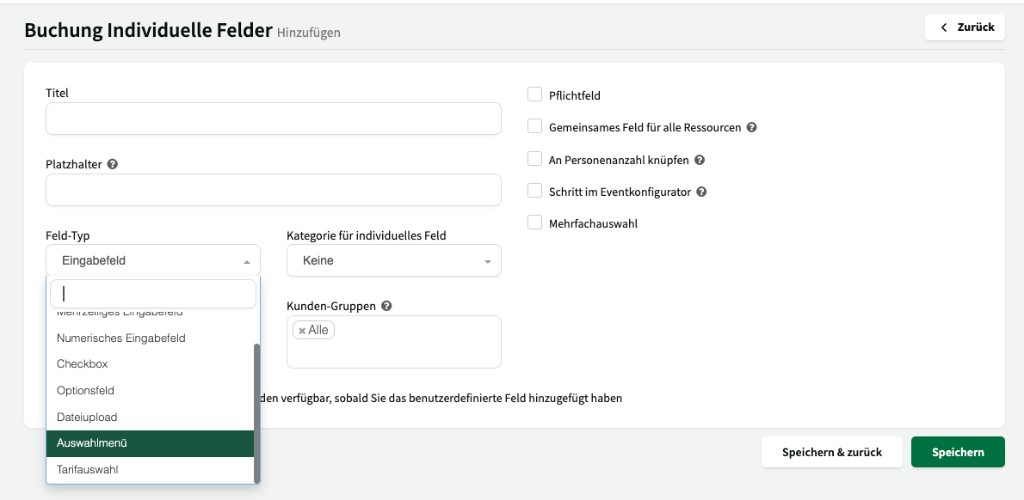
Depending on the use case, different field types are available; they differ in input behaviour and available options.
| Field type | Description |
|---|---|
| Input field | Single-line free text (e.g. “Event name”). |
| Multi-line input field | Multi-line text for longer entries (e.g. “Special notes”). |
| Numeric input field | Field that accepts only numeric values (e.g. “Expected number of participants”). |
| Checkbox | Yes/no question (e.g. “Youth training?”). Can be used for tariff differentiation and tax rate restriction. |
| Option field | Select one option from predefined values (radio buttons). |
| File upload | Allows uploading files for the booking. Only available with the Media manager add-on. |
| Dropdown | Dropdown selection from predefined values. Can be used for tariff differentiation. |
| Tariff selection | Special field for selecting a tariff. |
Restrictions by field type
Section titled “Restrictions by field type”Certain advanced options are only available for specific field types:
| Option | Available for |
|---|---|
| Available for restriction of tariffs for resources, inventory, and services | Checkbox and Dropdown only |
| Available for restriction of tax rate | Checkbox only |
| File upload (field type) | Only with Media manager add-on |
Tariff differentiation
Section titled “Tariff differentiation”Using custom fields of type Checkbox or Dropdown, you can differentiate tariffs within a customer group – e.g. a reduced tariff for youth training.
- Create a new field of type Checkbox or Dropdown
- Enable Available for restriction of tariffs
- Assign the desired resources
- In the tariff, set a condition: “if field checked / not checked” (checkbox) or “if value selected” (dropdown)
Example
Section titled “Example”A checkbox “Youth training” is created. In the tariff you define: If “Youth training” is enabled, the price is €5 instead of €10 per hour.
Tax rate restriction
Section titled “Tax rate restriction”Using a custom field of type Checkbox, you can vary the tax rate depending on a selection in the booking. Enable Available for restriction of tax rate and define the corresponding condition in the tax rules.
Practical examples
Section titled “Practical examples”Common use cases for custom fields in practice:
Booking fields
Section titled “Booking fields”| Field | Type | Required | Purpose |
|---|---|---|---|
| Type of use | Dropdown (training, competition, event) | Yes | Tariff control – different tariffs by type of use |
| Participant group | Dropdown (children/youth, adults) | Yes | Reduced tariff for youth groups within the same customer group |
| Expected headcount | Numeric input field | Yes | Capacity planning and documentation |
| Hall rules accepted | Checkbox | Yes | Mandatory confirmation when booking via the platform |
| Event with admission fees | Checkbox | No | Tax rate restriction (e.g. 19% instead of 0% for commercial use) |
| File / reference number | Input field | No | Mapping to municipal case numbers |
| Special requests / notes | Multi-line input field | No | Free text for notes from the booker |
Customer fields
Section titled “Customer fields”| Field | Type | Purpose |
|---|---|---|
| Club register no. | Input field | Documentation for clubs |
| Contact person / department | Input field | Assignment within larger organisations |
Fields for check-in
Section titled “Fields for check-in”Custom fields can also be requested at check-in. Typical use cases:
| Field | Type | Purpose |
|---|---|---|
| Actual number of participants | Numeric input field | Documentation of actual use (e.g. for municipal hall books) |
| Usage confirmation | Checkbox | Confirmation that hall rules are followed |