

Calendar
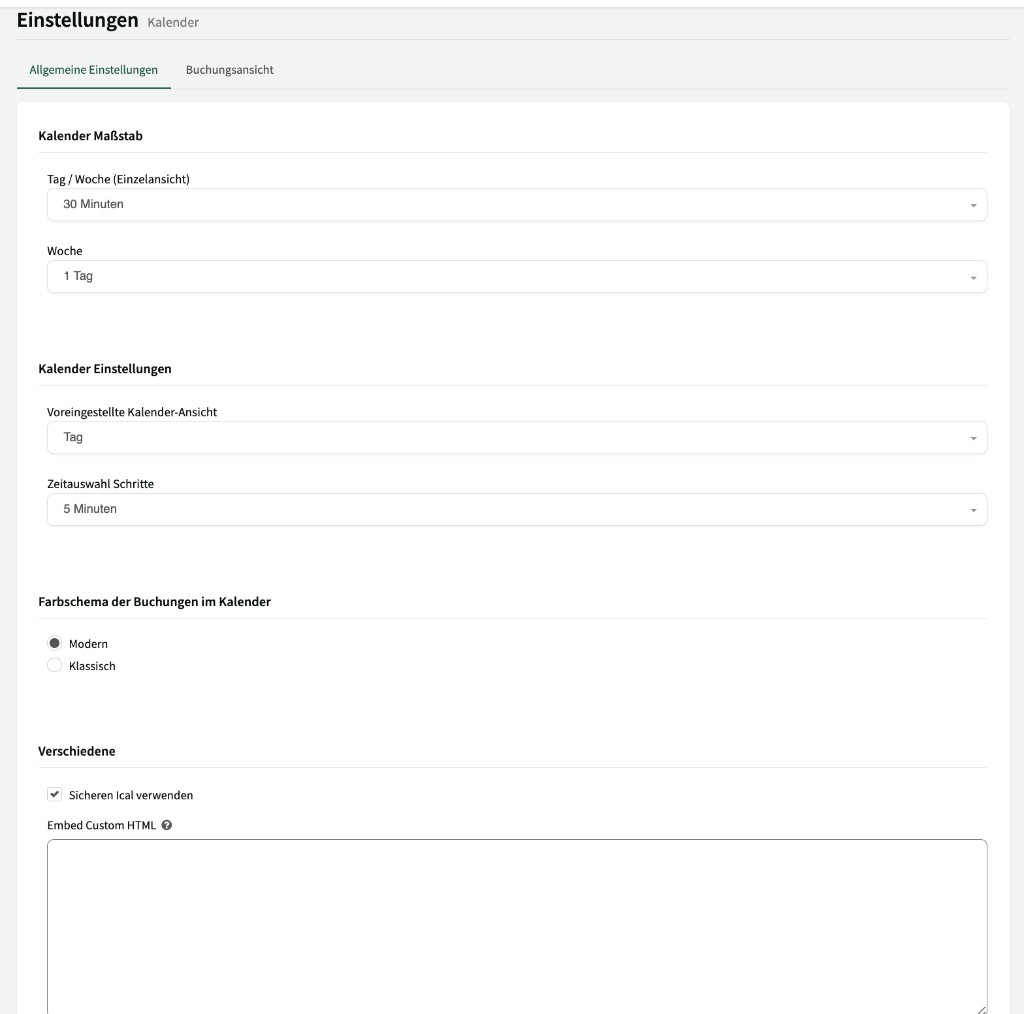
Under Settings > Calendar you adjust how the calendar looks and behaves. The settings are split across two tabs: General settings (↗ open) and Booking view (↗ open).
Calendar scale
Section titled “Calendar scale”The calendar scale determines how the calendar is divided into time blocks:
| Setting | Description |
|---|---|
| Day / week (single view) | The size of time blocks in day view and in week view for a single resource. For example “30 minutes” – then each block in the calendar corresponds to a 30-minute interval. |
| Week | The size of time blocks in week view with several resources. For example “1 day” – then each day is shown as one block. |
Calendar settings
Section titled “Calendar settings”| Setting | Description |
|---|---|
| Default calendar view | The view shown when you open the calendar (day, week, or month). |
| Time selection steps | The predefined time intervals offered in the time picker of the booking sidebar (e.g. “5 minutes”). |
Colour scheme for bookings in the calendar
Section titled “Colour scheme for bookings in the calendar”Choose how bookings are styled in the calendar:
- Modern – Modern, subtle colours with lower saturation.
- Classic – Strong, high-contrast colours for clearer separation between bookings.
Miscellaneous
Section titled “Miscellaneous”- Use secure iCal – Enable this option to provide iCal sync over a secure connection.
- Embed Custom HTML – Enter custom HTML to embed in the calendar. You can use this to show your own notices or widgets directly in the calendar.