

Approval workflows
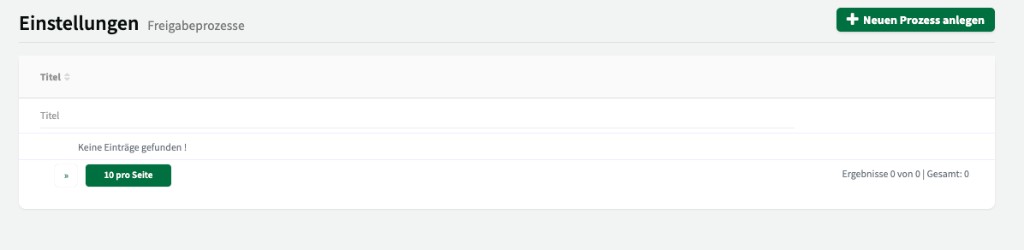
Under Settings > Approval workflows you set up multi-step approval workflows for booking requests. This ensures booking requests are only approved after one or more internal approvals. ↗ Open in Locaboo
When are approval workflows useful?
Section titled “When are approval workflows useful?”Approval workflows help when booking requests should not be approved by a single person alone, but several parties are involved – for example:
- A booking request must first be checked by the caretaker and then approved by the department head.
- Certain resources require approval from administration before the booking is confirmed.
- In larger organisations, different responsible people should be involved in a defined sequence.
Creating a process
Section titled “Creating a process”Use + Create new process to create a new approval workflow.
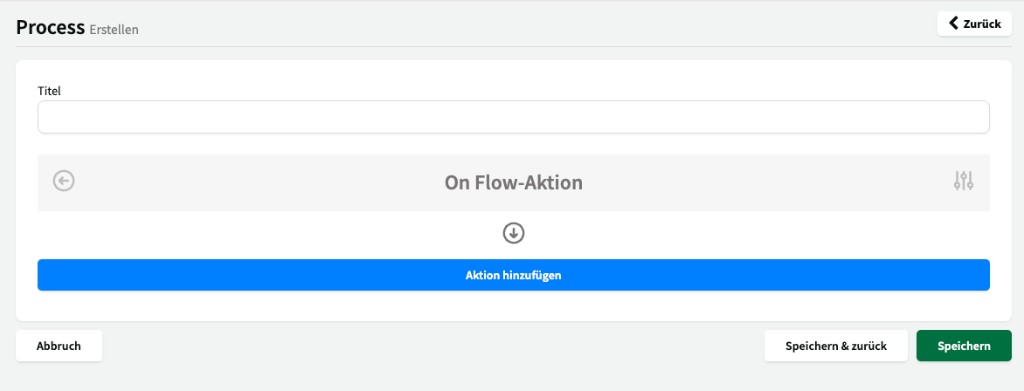
| Setting | Description |
|---|---|
| Title | Name of the approval workflow (e.g. “Two-step approval sports hall”). |
| On Flow action | The sequence of actions executed one after another. |
Use Add action to add a new action to the process.
Action types
Section titled “Action types”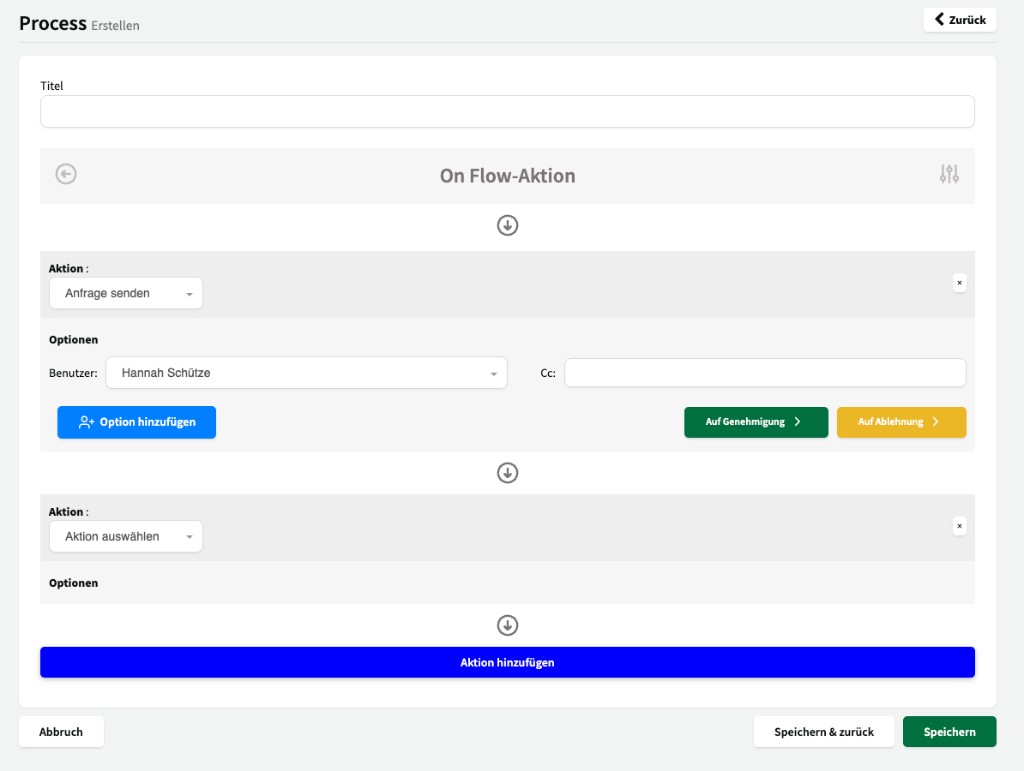
For each action in the process you choose a type:
| Action type | Description |
|---|---|
| Send request | Sends the booking request to a specific user for approval. The user can approve or reject the request. |
| Send email | Sends a notification email to a defined address (e.g. for information, without an approval step). |
“Send request” action
Section titled ““Send request” action”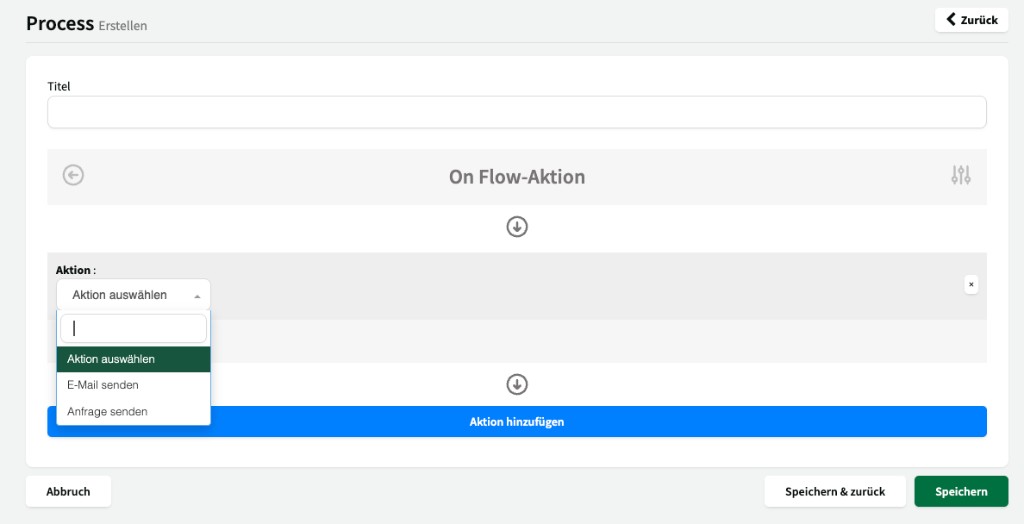
| Setting | Description |
|---|---|
| User | The user who should approve or reject the request. |
| Cc | Optional email addresses that receive a copy of the request. |
| + Add option | Adds further users as alternative approvers. |
After a “Send request” action there are two paths:
- On approval (green) – defines what happens next when approved (e.g. next action in the process or completion).
- On rejection (yellow) – defines what happens when rejected (e.g. email to the customer or abort).
Multi-step processes
Section titled “Multi-step processes”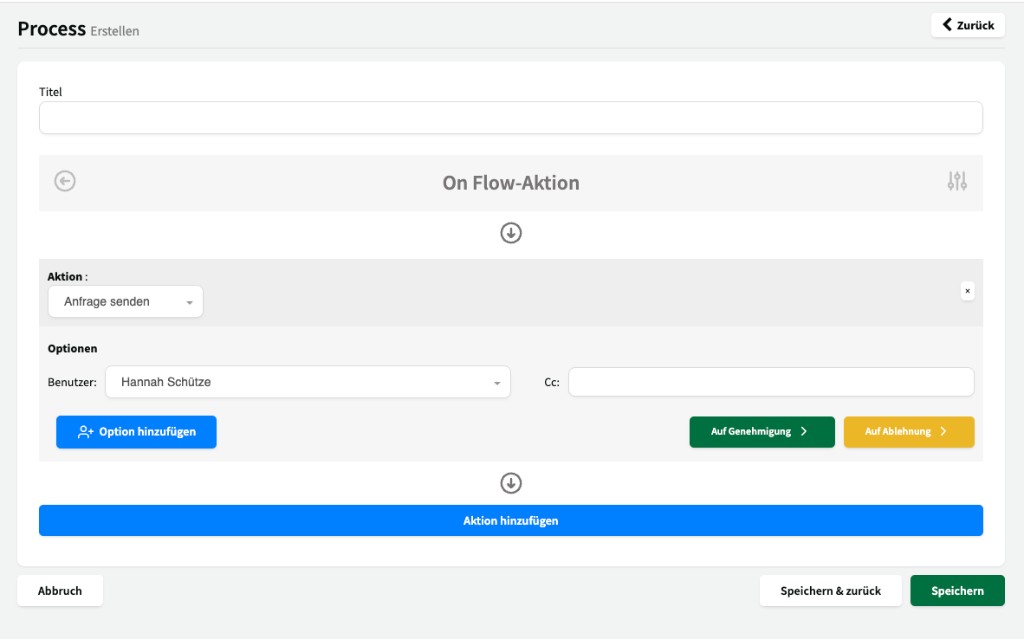
Via Add action you can chain as many actions as you need. Actions are processed from top to bottom:
- First action – e.g. “Send request” to the caretaker
- On approval → second action – e.g. “Send request” to the department head
- On approval → booking is confirmed
If rejected at any point, the process can be aborted or a notification can be sent.
Example: Two-step approval
Section titled “Example: Two-step approval”- Customer submits a booking request via the platform
- Step 1: Request goes to the caretaker → checks availability → approves
- Step 2: Request goes to administration → reviews and approves
- Booking is confirmed and the customer receives confirmation
Assigning an approval workflow to availability
Section titled “Assigning an approval workflow to availability”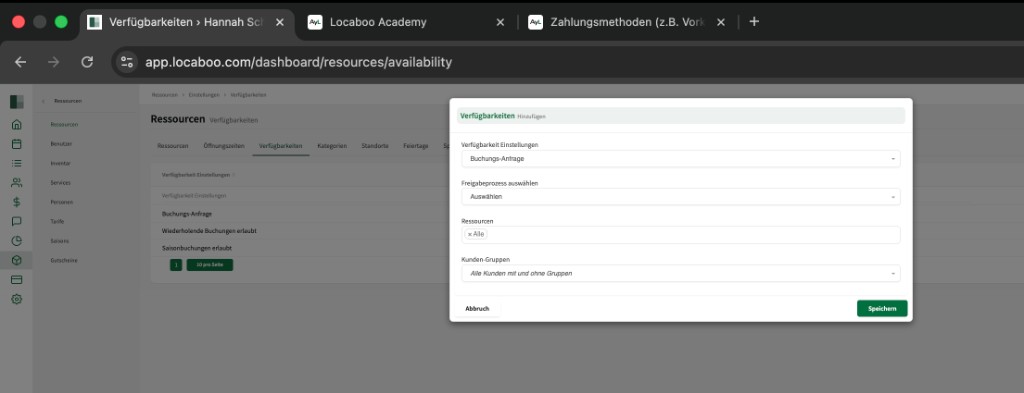
Once an approval workflow exists, it can be assigned in a resource’s availability settings. Go to Resources > Settings > Availability and create or edit an availability:
- Set Availability settings to Booking request
- In Select approval workflow, choose the desired process
- Assign Resources and Customer groups
All booking requests that come in via this availability rule then run through the assigned approval workflow automatically.