

Tariffs
In the Tariffs tab you define the prices for your resources. You see an overview of all tariffs with name, customer group, billing interval (e.g. “€5 per hour”) and assigned resources.
Tax Management (Prerequisite)
Section titled “Tax Management (Prerequisite)”Before creating tariffs, you should set up tax management. You can find this under Settings → Tax Management.
Creating Tax Rates
Section titled “Creating Tax Rates”In the Tax Rates tab, create the required rates (e.g. 19% and 0%).
General Tax Settings
Section titled “General Tax Settings”In the General tab, configure:
| Setting | Description |
|---|---|
| Calculation Method | The general method for VAT calculation. |
| Activate VAT | Whether tax is charged at all. |
| Default Tax Rate | The rate that applies to all customers and resources (e.g. 19%). |
| VAT Inclusive | Whether the entered prices already include VAT. |
Tax Rules by Customer Group
Section titled “Tax Rules by Customer Group”Via Add Tax Rule you can define exceptions – e.g. 0% VAT for schools and clubs. Create the rule for both main resources and sub-resources, as with booking rules.
Create a Tariff
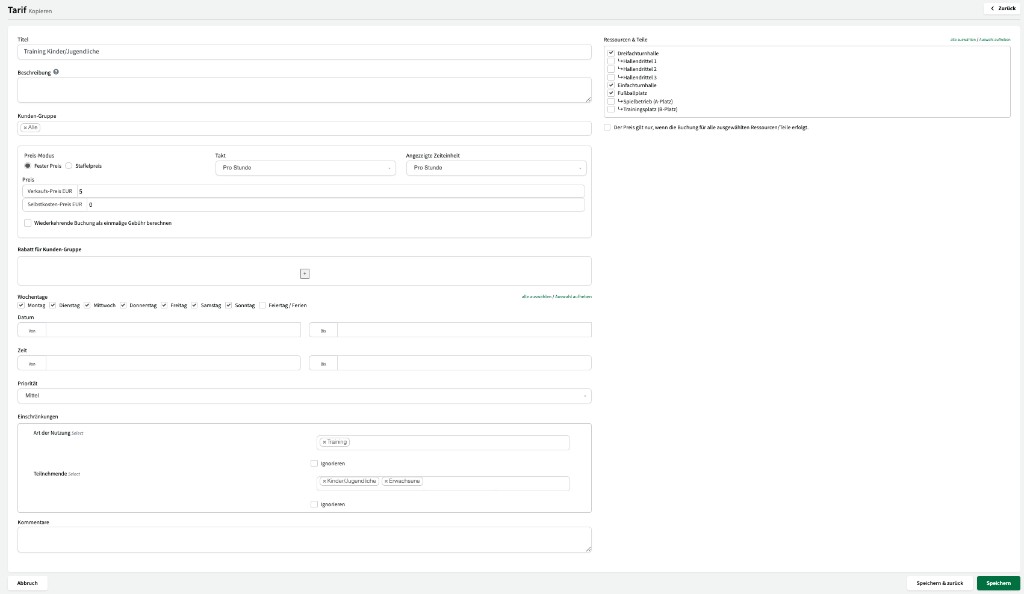
Section titled “Create a Tariff”Use the + Add button to create a new tariff:
| Field | Description |
|---|---|
| Title | A descriptive name (e.g. “Clubs – Hourly rate”). |
| Customer Group | Which customer group the tariff applies to. |
| Resources | Which resources or sub-resources the tariff applies to. |
| Price Type | Fixed price (with billing interval) or Flat rate (one-off, regardless of duration). |
| Billing Interval | For fixed price: e.g. per hour, per day. |
| Amount | The price (net, if you work without “VAT inclusive”). |
| Weekdays | Optional: tariff applies only on certain weekdays. |
| Validity Period | Optional: tariff applies only from/until a specific date. |
Billing Interval “Per Hour”
Section titled “Billing Interval “Per Hour””With the per hour interval, each started hour is charged in full. From 61 minutes onwards, the customer pays for two full hours. If this is not desired, you can set a finer interval (e.g. per 30 minutes).
Flat Rate
Section titled “Flat Rate”With a flat rate, a fixed amount is charged regardless of booking duration.
Tariffs for Main and Sub-Resources
Section titled “Tariffs for Main and Sub-Resources”If your resource has sub-resources, you typically need separate tariffs for the main resource and for the sub-resources.
Example – triple gym hall:
- Tariff main resource: €30 per hour (for the entire hall).
- Tariff sub-resources: €10 per hour (per hall third).
This way, the customer pays the same total of €30 regardless of whether they book the entire hall via the main resource or select all three hall thirds individually.
Tariffs with Custom Fields
Section titled “Tariffs with Custom Fields”If you need a further distinction within a customer group, you can use custom fields.
Typical example: The customer group “Clubs” pays €10 per hour – but youth training should cost only €5.
Creating a Custom Field
Section titled “Creating a Custom Field”- Go to Settings → Custom Fields → Bookings.
- Create a new field (e.g. “Youth training?”).
- Select field type Checkbox.
- Enable Available for tariff restriction.
- Choose the resources the field should apply to.
Linking Tariffs to the Field
Section titled “Linking Tariffs to the Field”- Create the regular tariff (e.g. €10 for clubs) and set the condition: field “Youth training?” is not selected.
- Copy the tariff and adjust the price (e.g. €5). Set the condition: field “Youth training?” is selected.
In the calendar, when booking you will see the field “Youth training?” under Additional Details. Depending on whether the checkbox is enabled, Locaboo applies the matching tariff:
- Checkbox not enabled → €10 (regular tariff)
- Checkbox enabled → €5 (reduced tariff)
Hourly and Daily Rates at the Same Time
Section titled “Hourly and Daily Rates at the Same Time”In some cases you may want to offer both an hourly rate and a daily rate for the same resource. This is possible in Locaboo by creating two separate tariffs with different billing intervals (e.g. “per hour” and “per day”). Locaboo automatically applies the cheaper tariff when the booking duration covers a full day.
Finer Billing Intervals (Per Minute, Per 15 Minutes)
Section titled “Finer Billing Intervals (Per Minute, Per 15 Minutes)”In addition to the standard intervals (per hour, per day, flat rate), you can also set finer intervals – e.g. per 15 minutes or per minute. Adjust the price accordingly: if the hourly rate is €30, set the amount to €7.50 for “per 15 minutes” or €0.50 for “per minute”.
Tiered Tariffs (Graduated by Duration)
Section titled “Tiered Tariffs (Graduated by Duration)”Using the tiered tariff feature, you can graduate prices depending on booking duration. The price is then multiplied by the configured hour interval.
If you need flat rates per interval instead (e.g. half-day rate, full-day rate), disable the tiered tariff and enable the Use flat rate option for the respective interval.
Price Changes for Ongoing Bookings
Section titled “Price Changes for Ongoing Bookings”Tariff changes affect all future invoices – regardless of when the booking was created. Proceed as follows for a price adjustment:
- Copy the existing tariff.
- In the copied tariff, enter the new price and set the Valid from date (e.g. 01.04.2026).
- On the old tariff, set Valid until to the day before the change (e.g. 31.03.2026).
All bookings from the validity date onward are calculated automatically with the new tariff.
Practical Examples
Section titled “Practical Examples”Sports halls: clubs, schools and commercial users
Section titled “Sports halls: clubs, schools and commercial users”A typical configuration for sports halls with three customer groups:
| Customer Group | Hourly Rate | Full Day | Notes |
|---|---|---|---|
| Clubs | €10/h | €60/day | Reduced to €5/h for youth training (via custom field) |
| Schools | €0/h | €0/day | Tax rule: 0% VAT |
| Private/commercial | €25/h | €150/day | Standard VAT 19% |
Separate tariffs for main and sub-resources are also recommended (e.g. triple sports hall vs. hall third).
Meeting rooms: hourly and half-day rates
Section titled “Meeting rooms: hourly and half-day rates”For meeting and seminar rooms, combinations of hourly rate and flat rate make sense:
| Tariff | Type | Amount |
|---|---|---|
| Hourly rate | per hour | €15/h |
| Half day (up to 4h) | Flat rate | €50 |
| Full day (from 4h) | Flat rate | €80 |
When intervals overlap, Locaboo automatically applies the cheaper tariff for the customer.
Weekend surcharges
Section titled “Weekend surcharges”Create two tariffs with the same resources and customer groups but different weekdays:
- Weekday tariff: Monday to Friday, €10/h
- Weekend tariff: Saturday and Sunday, €15/h
Use the Priority field to control which tariff applies when they overlap (higher priority = takes precedence).
Tariff Not Shown – Troubleshooting
Section titled “Tariff Not Shown – Troubleshooting”If no tariff appears for a booking or the price is €0.00, check the following:
- Customer group: Is a tariff defined for the customer’s customer group? Customers without a customer group are assigned to the default customer group.
- Resource: Is the tariff assigned to the correct resource (or sub-resource)?
- Prices disabled: Check under Settings > Booking > General whether the “Disable prices” option is enabled.
- Custom fields: If the tariff is tied to a custom field (e.g. checkbox), check whether the condition is set correctly.
- Validity period: Check whether the tariff is time-limited and whether the booking date falls within the validity period.
- Weekdays: Check whether the tariff is limited to certain weekdays.