

Inventory & services
On the Inventory and Services tabs you add extra equipment and services customers can book together with a resource. Both areas work similarly—services add categories and service-provider assignment.
Inventory
Section titled “Inventory”Inventory covers equipment and items available for a resource (for example goal nets, projectors, tables).

Create an inventory item
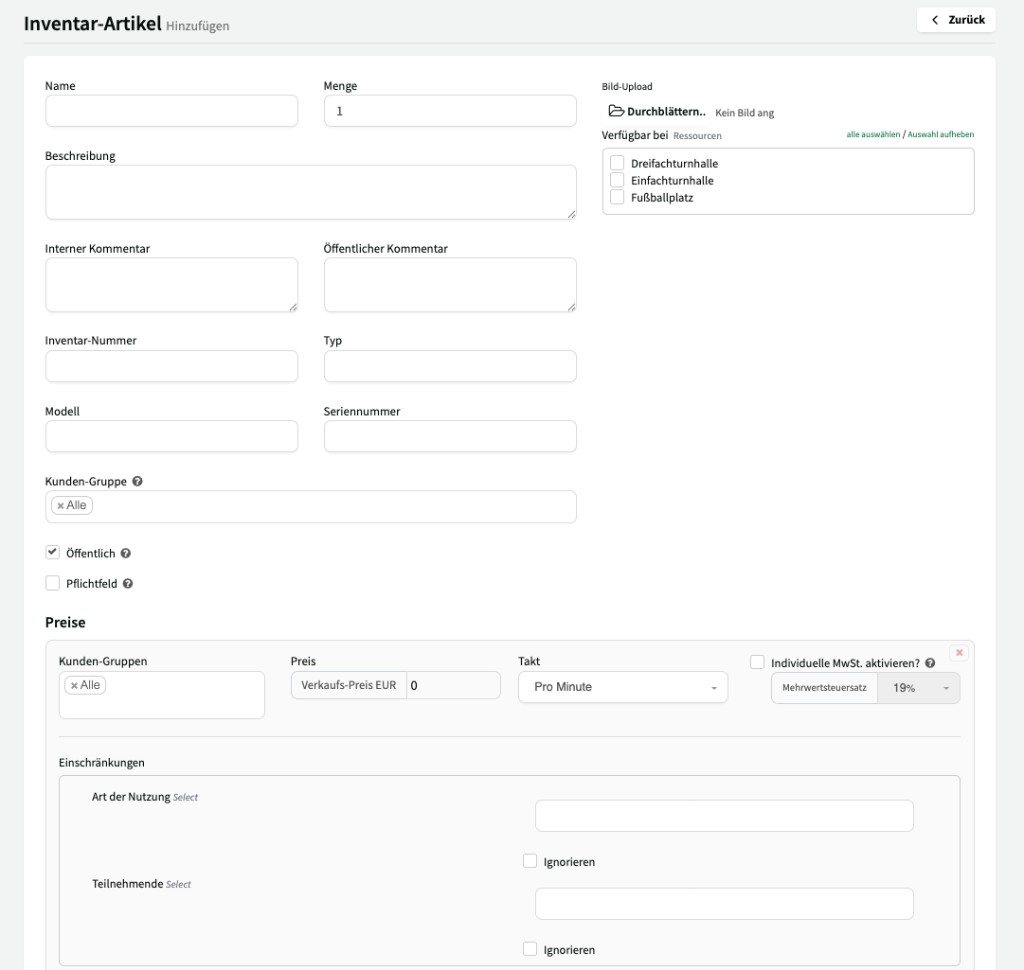
Section titled “Create an inventory item”Use + Add to create a new item:
| Field | Description |
|---|---|
| Title | Name of the item (for example “Goal net”). |
| Quantity | How many of the item are available (for example 5). |
| Description | Optional text that customers can also see. |
| Resources | Which resources the item is available for. |
| Public | Whether the item is visible and bookable on the booking platform for customers. |
| Customer groups | Which customer groups the item is available for. |
Set prices
Section titled “Set prices”You can store different prices per customer group:
- Choose the customer group and price (for example €4.99 per booking for external users, €0.00 for schools and clubs).
- Set the billing unit (for example per booking, per day).
- The VAT rate is taken from defaults; you can override it per item (for example 0% for certain customer groups).
Inventory in the calendar
Section titled “Inventory in the calendar”When you create a booking in the calendar and select the right resource, the inventory item appears on the Inventory tab of the booking sidebar—with title, description, and price.
Services
Section titled “Services”Services work like inventory but add two features:

Service categories
Section titled “Service categories”Under the Service categories tab you create categories (for example “Equipment”, “Cleaning”). When you create a service you assign it to a category. That enables filtering and sorting—especially helpful when you manage many services.
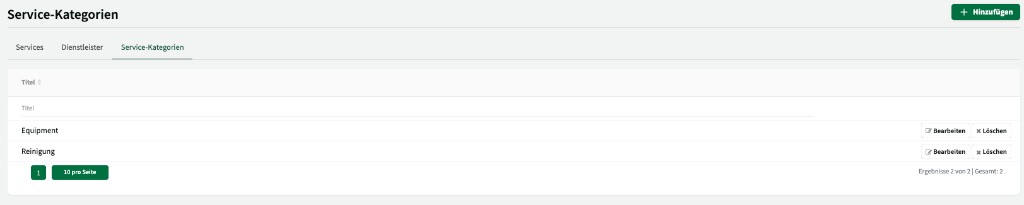
In the booking sidebar, customers can filter services by category via a dropdown.
Service providers
Section titled “Service providers”Under the Service providers tab you create external providers. When you create a service you can assign a provider. The provider is notified automatically when the service is added to a booking.

Example: Final cleaning is set up as a service in the “Cleaning” category and assigned to “Müller Building Cleaning”. As soon as a customer adds final cleaning, the provider is informed.
Inventory or services—which to use?
Section titled “Inventory or services—which to use?”| Criterion | Inventory | Services |
|---|---|---|
| Basic features (title, quantity, price, customer groups) | Yes | Yes |
| Categories for filtering | No | Yes |
| Service provider assignment | No | Yes |