

Holidays & closures
In Locaboo you manage holidays and closures in two separate tabs: Holidays (↗ open) for public holidays and school breaks, and Closures (↗ open) for your own shutdowns.
Holidays & school breaks
Section titled “Holidays & school breaks”The Holidays tab shows public holidays and school breaks for your federal state. Which state is used follows the manager account setting.
Enable holidays
Section titled “Enable holidays”All holidays and breaks are disabled by default (greyed out, toggle on the left). You can go through the list and enable individual entries with the toggle.
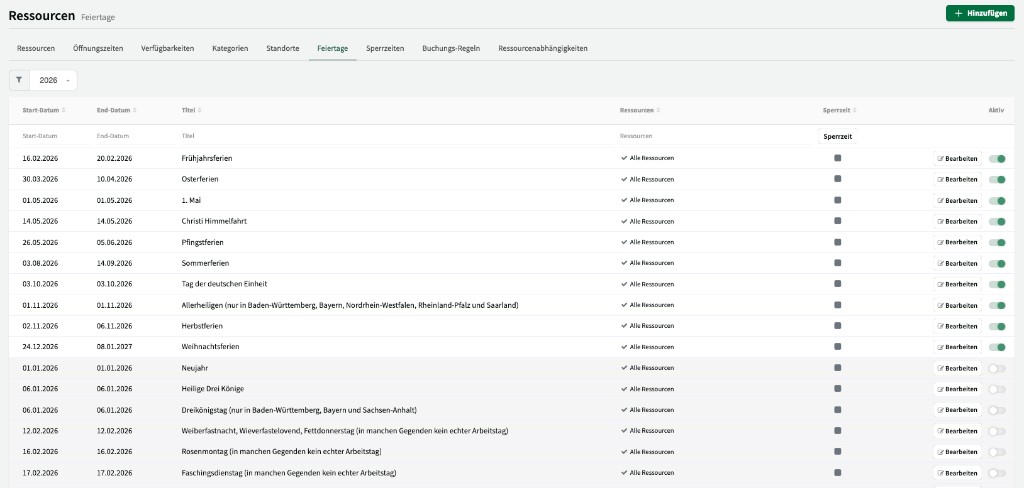
When a holiday is enabled and marked as a closure:
- The resource is not bookable for customers on that day.
- The day is shown with a blue background in the calendar.
- When customers click, they see the message “Resource is closed” with the reason (for example “Summer holidays”).
Configure holidays per resource
Section titled “Configure holidays per resource”By default an enabled holiday applies to all resources. Via Edit you can limit a holiday to specific resources only.
Example: New Year’s Day is closed only at the football pitch; other resources stay open.
Adjust start and end dates
Section titled “Adjust start and end dates”You can adjust the start and end date of a holiday or break—for example to extend or shorten a closure by a day or two around the official break.
Holiday without closure
Section titled “Holiday without closure”If you mark a holiday as active but disable closure, the holiday is shown informatively in the calendar with a small blue bar. The resource remains bookable.
Closures
Section titled “Closures”On the Closures tab you create your own shutdowns that are unrelated to public holidays or school breaks—for example renovation or special events.
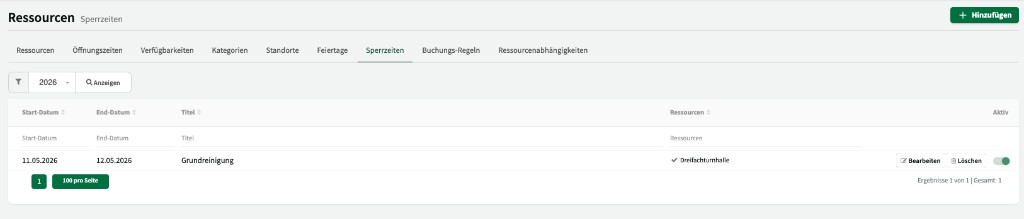
Create a closure
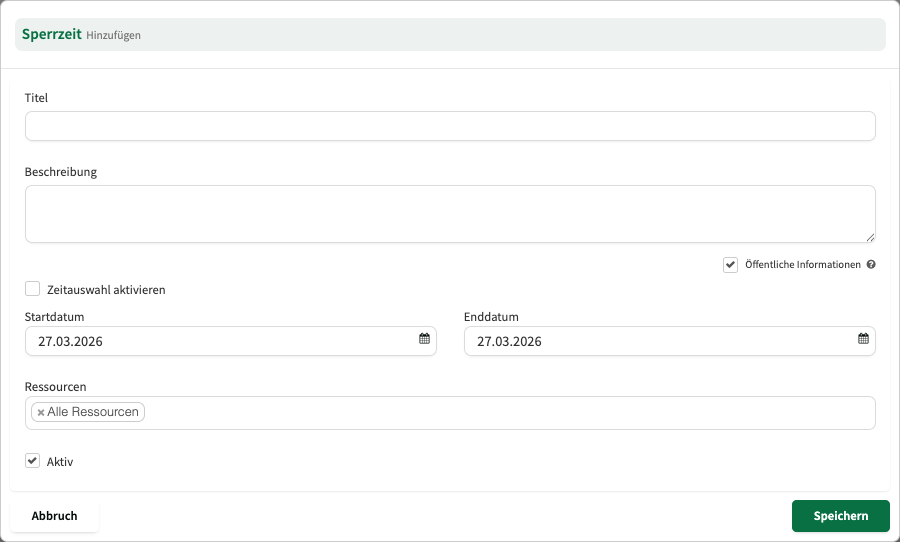
Section titled “Create a closure”Use + Add to create a new closure with the following details:
| Field | Description |
|---|---|
| Title | Name of the closure (for example “Renovation”). |
| Description | Optional explanatory text. Visible to customers if Public information is enabled. |
| From / To | The closure period. |
| Resources | Which resources the closure applies to. |
Display in the calendar
Section titled “Display in the calendar”In the calendar, closures and active holidays are shown with a blue background. The resource is not bookable for customers. Clicking a closed period shows the reason (for example “Summer holidays” or “Renovation”).
As an internal user or manager you can still create bookings in closed periods via + Add booking.