

Booking rules
On the Booking rules tab you define the conditions under which customers can make bookings. ↗ Open in Locaboo
Use + Add to create a new rule.
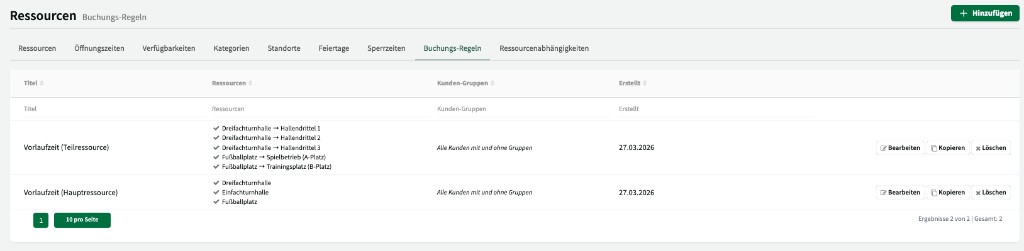
Create a booking rule
Section titled “Create a booking rule”Each booking rule consists of a title, an optional description, and the following settings:
| Setting | Description |
|---|---|
| Customer group | Which customer group the rule applies to. |
| Resources | Which resources or sub-resources the rule applies to. |
| Lead time | How far in advance a booking must be made at minimum (for example 24 hours). |
| Minimum booking length | Shortest allowed booking duration (for example 60 minutes). |
| Maximum booking length | Longest allowed booking duration. |
| Booking spacing | Time before and/or after a booking as buffer (for example 15 minutes setup/teardown). |
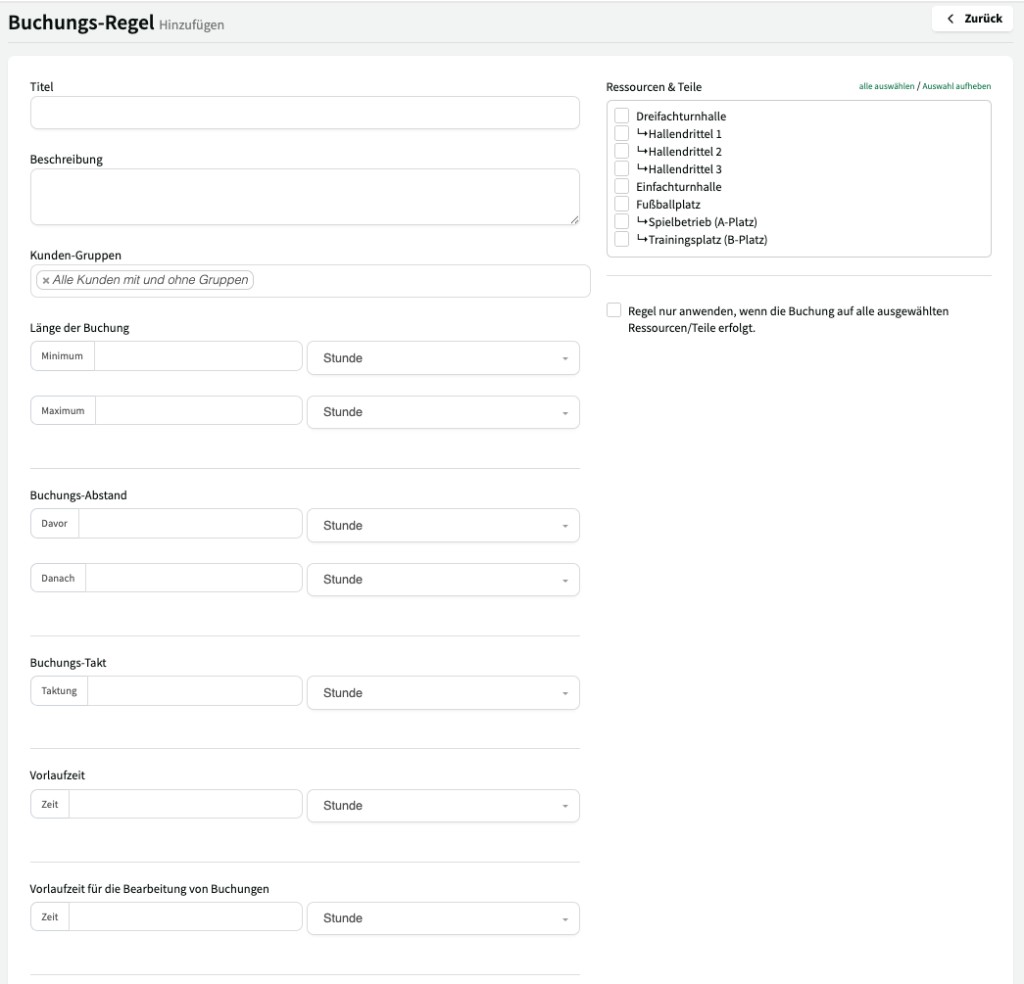
Lead time
Section titled “Lead time”Lead time is one of the most important settings. With a lead time of 24 hours, for example, a customer can submit a booking request at the earliest for tomorrow at the current time. That gives you enough processing time.
Rules for main and sub-resources
Section titled “Rules for main and sub-resources”If your resource has sub-resources (for example gym thirds 1, 2, and 3), create the booking rule for both the main resource and the sub-resources. A customer may book the whole hall (via the main resource) or individual parts—in both cases the same rule should apply.
Recommended approach:
- Create the booking rule for the main resource and save.
- Copy the rule using the corresponding button.
- In the copy, clear the main resource selection and choose the sub-resources instead.
That way you can see at a glance which rule applies to the main resource and which to sub-resources.