

Availability
On the Availability tab you define which booking rights customers have for your resources. Settings apply per resource and per customer group. ↗ Open in Locaboo
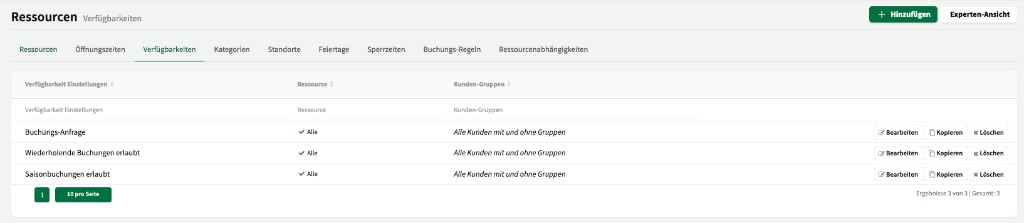
Base availability
Section titled “Base availability”For each resource you choose one of three base availability modes:
| Availability | Description |
|---|---|
| Direct booking | The customer can book directly—the booking is confirmed immediately without your intervention. |
| Booking request | The customer submits a request that you can approve or reject. |
| Restricted | The customer can only view occupancy and cannot book. Booking is only possible by phone or email. |
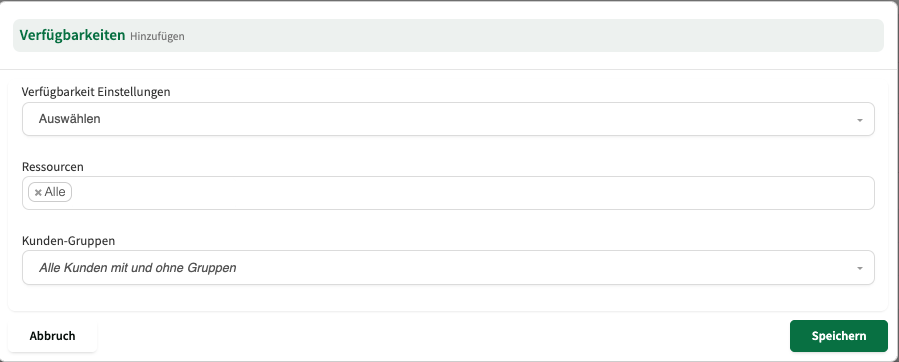
Additional booking options
Section titled “Additional booking options”Besides base availability you can specify, per resource and customer group, whether additional booking types are allowed:
- Recurring bookings — the customer can create series bookings.
- Season bookings — the customer can create bookings based on a defined season.
- Multi-resource bookings — the customer can book several resources in one booking.
Configure per customer group
Section titled “Configure per customer group”Availability can differ per customer group. As a default, All customers (with and without group) is recommended—it also includes people who register on the platform for the first time and are not yet assigned to a customer group.
Resource not shown on the platform
Section titled “Resource not shown on the platform”If a resource does not appear on the booking platform, check:
- Availability: Is at least one availability rule created for the resource? Without availability the resource does not appear in the widget. For view-only scenarios use Restricted.
- Platform setting: Under Resources > [Resource] > Settings, is Available on booking platform enabled?
- Widget assignment: Is the resource listed under Available resources on the Access tab of the widget?
Allow parallel bookings
Section titled “Allow parallel bookings”By default Locaboo flags a conflict when two bookings for the same resource overlap in time. If you want to allow parallel bookings on purpose (for example for co-working spaces), you can turn off the conflict manager for that resource. You’ll find the setting under Resources > [Resource] > Settings.