

Dashboard
You access the Locaboo dashboard at app.locaboo.com/dashboard; it is shown right after login. You are greeted by name and get an overview of your most important information. Which areas are visible depends on your permissions.
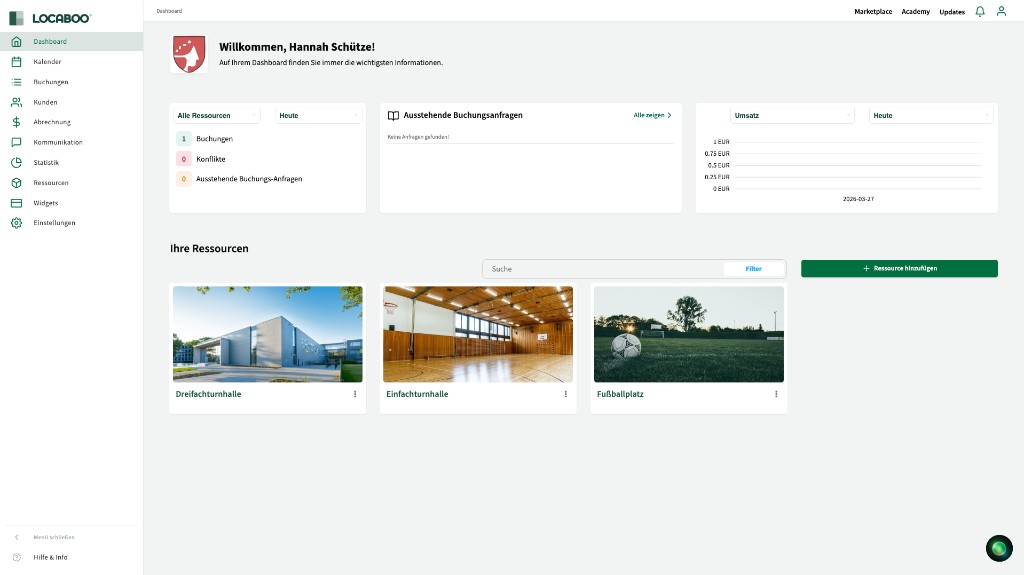
The dashboard is divided into four main areas: Bookings & conflicts, pending booking requests, revenue, and your resources.
Bookings & conflicts
Section titled “Bookings & conflicts”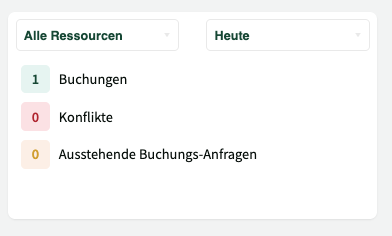
The left tile shows four key figures at a glance:
- Bookings – number of current bookings
- Conflicts – overlaps or issues with bookings
- Pending booking requests – requests that still need to be confirmed
- Participants – total number of reported participants
By default the filter is set to today. You can also choose other periods, for example tomorrow, current week, or next week – the figures update accordingly. You can also filter by all resources or a single resource.
All key figures are clickable:
- Click the booking count → opens the calendar with the corresponding bookings.
- Click the conflict count → opens the conflict manager. There you can filter conflicts by period (day, week, month) and resource and edit them as needed.
Pending booking requests
Section titled “Pending booking requests”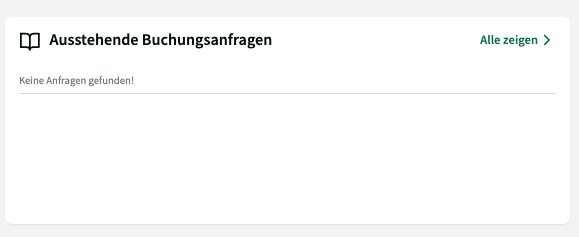
The middle tile shows the first five open booking requests with the date the request was received.
Use the pencil icon next to a request to edit it immediately. A detail view opens with:
- Resource and date
- All booking-relevant details
- Expandable tariff information
From here you can confirm or reject the request directly.
Use the Show all button to go to the full list of all booking requests. There you can filter by status, for example:
- Open – requests not yet processed
- Approved – requests already confirmed
From this view you can open, edit, confirm, or reject any request. Use the calendar link to jump straight to the booking in the calendar.
Revenue
Section titled “Revenue”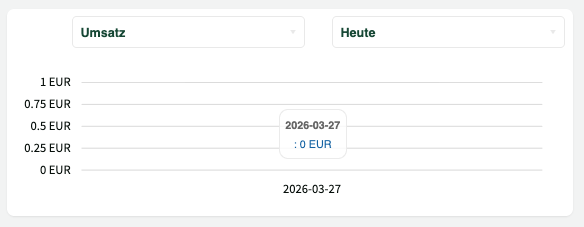
The right tile shows today’s revenue as a chart. Use the preset period filters to view revenue for longer periods as well.
Your resources
Section titled “Your resources”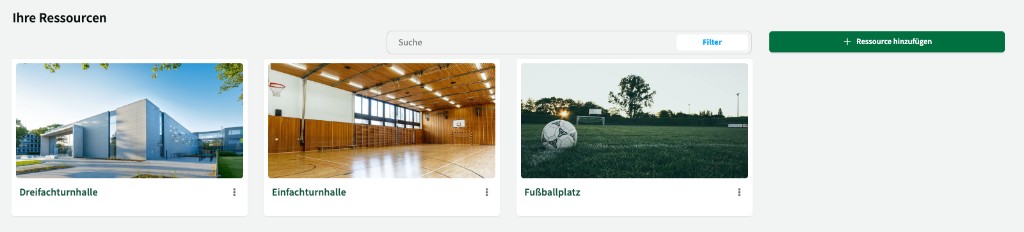
At the bottom you see all resources you have created – for example halls, sports facilities, or other bookable objects. Each resource appears as a tile with image and name.
Use the search field to find a specific resource. Use the category filter to limit the list to certain resource categories.
Click a resource to open the calendar for that resource directly.
Use the three-dot menu next to a resource title to open resource info. There you will find (where configured):
- Sub-resources – nested resources
- Opening hours – when the resource is available
- Contact details – taken from location data
- Tariffs – which tariffs are set up for this resource
- Equipment & services – which equipment and services can be booked
Use the drag handle at the bottom of each tile to change the order of resources by drag and drop.
Use the green + Add resource button or the Create new resource tile at the end of the list to create a new resource.
Navigation
Section titled “Navigation”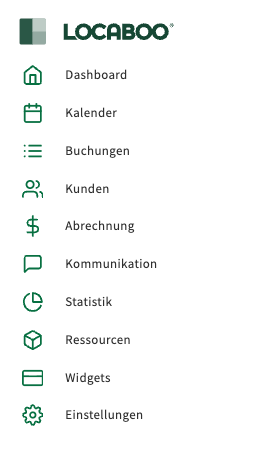
On the left you find the main navigation with all Locaboo areas:
| Area | Description |
|---|---|
| Dashboard | Home page with key figures and resources |
| Calendar | View bookings in the calendar |
| Bookings | Manage all bookings |
| Customers | View customer data |
| Billing | Invoices and finances |
| Communication | Messages and notifications |
| Statistics | Reports and analytics |
| Resources | Maintain rooms and equipment |
| Widgets | Embeds and public views |
| Settings | Adjust system settings |
The top bar also includes links to Marketplace, Academy, and Updates – for extensions, training videos, and Locaboo news.
Help & info
Section titled “Help & info”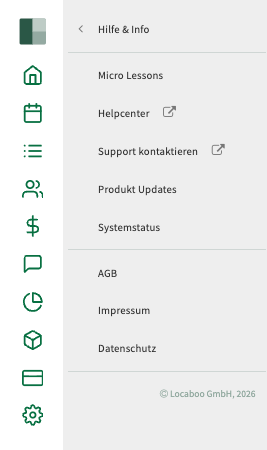
At the bottom of the sidebar you find Help & info. A click opens a menu with the following entries:
| Entry | Description |
|---|---|
| Micro lessons | Short videos on individual features |
| Help center | Opens the Locaboo help center (external page) |
| Contact support | Direct contact to Locaboo support |
| Product updates | News and changes to Locaboo |
| System status | Current platform availability |
Below that are links to Terms, Imprint, and Privacy.